Table of Contents
BeeGraphy is back with another major update, and this one takes your work even further from concept to finished part. Building on the CAM View and Machine Package introduced in our previous release, we’ve launched a completely redesigned Hardware Toolbox, expanded the capabilities of the CAM engine, added automatic nesting, and refined the workspace experience. Together, these improvements make your workflow faster, smarter, and more ready for real-world manufacturing than ever before.
The New Toolbox Plugin
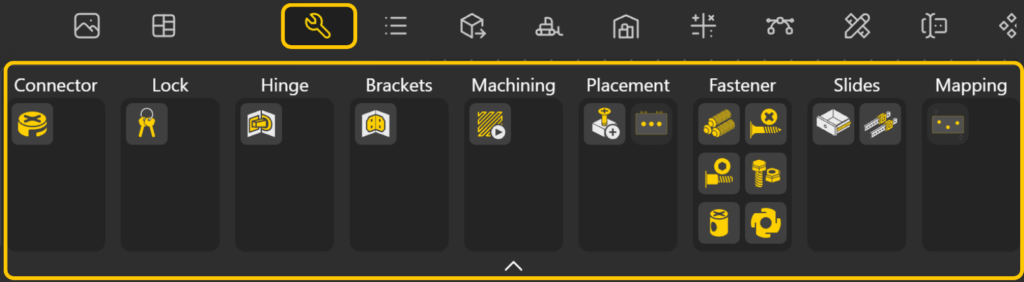
This is the biggest structural addition in the release: a brand-new Toolbox plugin with 16 nodes across 9 groups, built for assembling furniture and cabinet designs. You’ll find it under the Toolbox group in the menu, or via search.
The big idea is simple. Each hardware node gives you two things at once, the 3D model of a real fitting, and an invisible to-do list of machining operations (the holes, pockets, and grooves that fitting needs) that travels along with it. You never drill anything by hand, you place real hardware, and the holes follow automatically.
The Hardware Nodes
These are the parts themselves. Each one is driven by a Library Item ID (you pick the exact item from the library) and outputs the part plus its operations.
- Fasteners:
- BoltNut (hex bolt + nut pair, M4–M24)
- Confirmat Screw (stepped-drill carcass screw)
- EuroScrew (cross-dowel connecting screw)
- TeeNut (press-in tee nut)
- Dowel (wooden/steel pin with two blind holes)
- Wood Screw (with countersink and pilot hole)
- Cam Lock: Minifix-style eccentric connector with a 15mm pocket, through-hole, and cross-bore for flat-pack assembly
- Cup Hinge: a 35mm European Blum-style hinge with all six of its machining operations, the key node for cabinet making
- Door Lock: a rectangular furniture lock (pocket + cylinder bore + faceplate groove)
- Corner Bracket: a right-angle L-bracket for carcass reinforcement, with screw holes on both legs
- Drawer Slide: a side- or under-mount slide pair with a dynamic screw-hole array
- Linear Rail: MGN/HGR-series guide rail with carriage block(s)

The Placement Nodes
These position your hardware onto a panel and cut the holes for you.
- Place Hardware: drops a single item at a point you choose, facing the surface normal, and applies the boolean cuts in real time. You can fine-tune with a twist angle and an offset.
- Auto Placement: distributes several copies across a face automatically, laid out with familiar layout controls (even spacing, centered, with padding from the edges), and even per-item weighting. Each tool’s holes stay locked together as a group, so multi-hole fittings never drift.
Spatial Operation Mapper
This is the brain of the workflow. In a real cabinet, hardware sits between two parts, and each part needs different holes. The Spatial Operation Mapper works out exactly which holes land on which panel by checking, in true 3D, where each cutting tool overlaps each sheet. It even corrects the depth so a hole is only ever as deep as the material actually there, and any hole that doesn’t hit a panel is simply dropped.
Machining Visualizer
Before you cut anything, Machining Visualizer shows every operation as a color-coded, see-through “ghost” overlay on your panel, with optional labels for diameter and depth. It’s your sanity check, confirming the right holes are in the right places at the right depths before export.
How It All Works in the Workspace
The workflow is designed to feel simple, even though powerful automation is happening behind the scenes.
- Select hardware from the library, place it manually or distribute it automatically across panels, and let the system carry the associated machining data with it.
- The Spatial Operation Mapper automatically assigns holes to the correct panels and adjusts their depths as needed.
- Before production, the Machining Visualizer lets you inspect all generated operations directly on the model.
Once verified, the operations flow seamlessly into CAM and export workflows, automatically generating the correct machining data for every panel.
The result is a faster, more reliable process where the right holes end up on the right parts, at the right depth, every time.
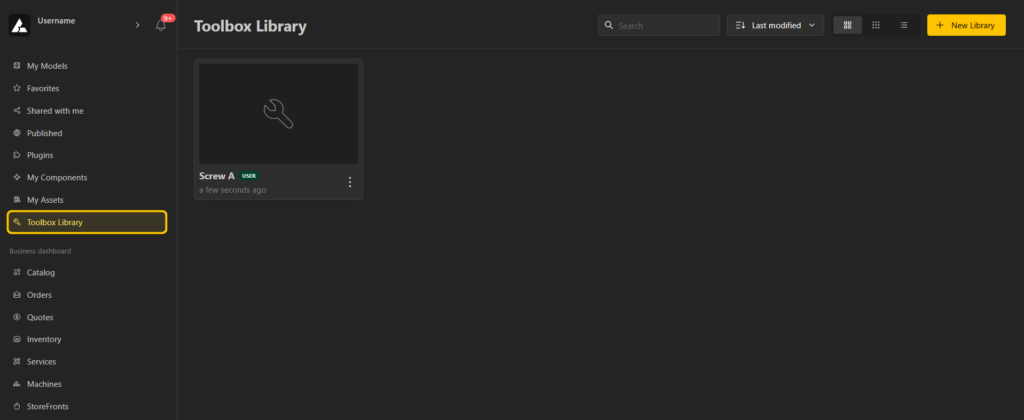
Toolbox Library in Your Workspace
The new Toolbox plugin needs hardware to place – and this is where that hardware lives.
A new Toolbox Library section now sits in your workspace sidebar, alongside My Models, Plugins, and My Assets, giving you one place to browse, build, and organize the hardware your designs use. Like the rest of your workspace content, it works across User, Team, and Project scopes.
What you can do:
- Browse standard and manufacturer libraries: ready-made hardware catalogs are available out of the box, marked read-only with a lock icon so you always know what’s a standard part.
- Build your own libraries: create custom hardware libraries scoped to you, your team, or a specific project.
- Inspect any item: every item has a detail view with a live 3D preview, its full parameter table, and a read-only summary of its machining operations.
- Create items with a guided wizard: a five-step wizard walks you through basic info, parameters, machining operations, geometry (a primitive shape or an uploaded STEP file), and a final review with a 3D preview before saving.
- Import in bulk: bring in hardware from CSV, JSON, or STEP files, with a preview and a result report so you know exactly what was created.
- Duplicate to customize: found a standard part that’s almost right? “Duplicate to My Library” copies it into one of your own libraries as a fully editable item.
Best of all, anything you create here appears directly in the node editor, ready to drop into your Toolbox nodes, so your custom hardware flows straight from the library into your designs.
The result is a smoother, more reliable workflow where the right holes end up on the right parts, at the right depth, every time.
CAM Gets More Capable
With CAM View and the Machine Package already in place, this update significantly expands what the CAM engine can actually output.
New Machine Support
- Labeler Machine: Generates a marking G-code program and a detailed label for each part, including a visual preview of the part, its edge-banding, and key specifications. Labels are automatically positioned and rotated to match the physical part, while essential information such as Part ID and material name is validated before export.
- 3-Axis Pocketing: Creates pocket-clearing toolpaths using zigzag or spiral cutting strategies.
- 3-Axis Drilling: Supports advanced drilling cycles, automatic hole detection, and optimized drilling sequences.
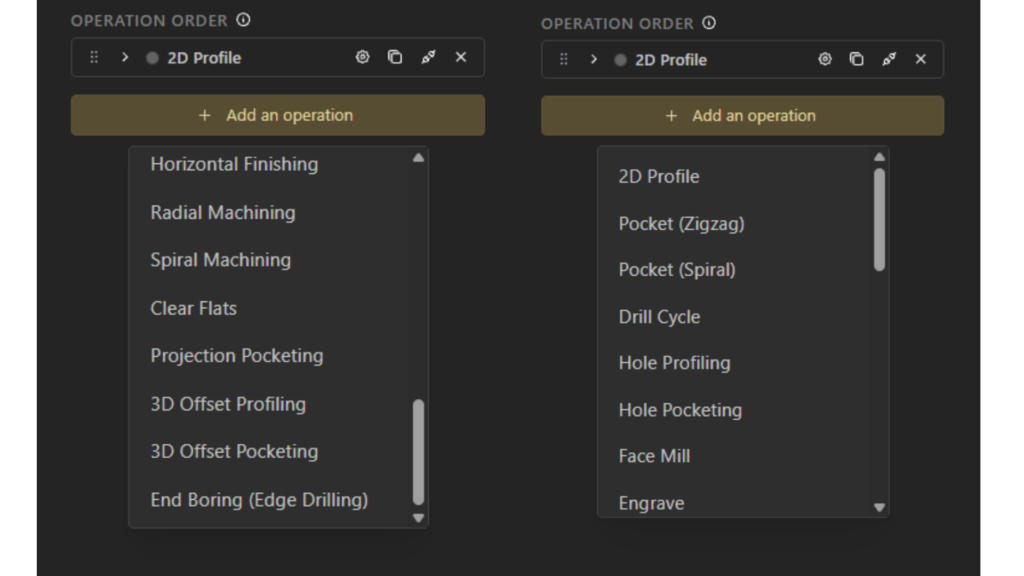
New Toolpath Strategies
Six new strategies expand how you can mill and turn.
- Offset Profiling 3D: Follows contours across curved surfaces for more accurate machining.
- Spiral Machining: Removes material with a smooth continuous spiral motion.
- Hole Pocketing: Efficiently clears larger holes and counterbores.
- Clear Flats: Automatically detects and finishes flat areas on a model.
- Hole Profiling: Machines holes to an exact size using an endmill.
- Follow-Curve Finishing (Lathe): Finishes custom turned profiles by following any 2D curve.
Nesting Plugin Upgraded
Laying out parts on a sheet by hand is slow and wasteful, so we’ve automated it. The new Nesting node arranges multiple parts onto a defined sheet, packing them as tightly as possible to minimize offcuts.
With the Nesting node you can:
- Set the sheet size, spacing between parts, and edge clearance
- Allow 90° rotation of parts to improve packing density
- See how efficiently the sheet was used, and which parts (if any) didn’t fit
It’s a meaningful chunk of manual layout time removed from every cutting job.
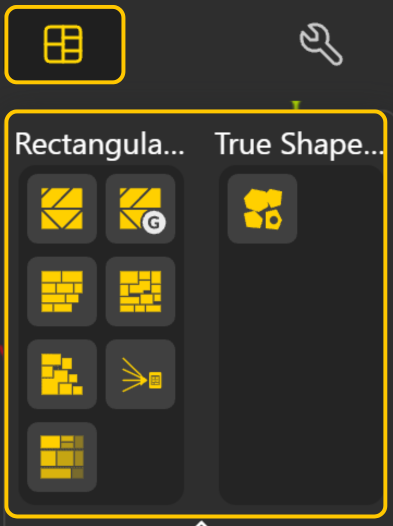
Rectangular Nesting
These pack parts by their rectangular footprint – the fast, reliable option for sheet goods and panel cutting.
- Nesting Row Naive: simple left-to-right rows; a fast, predictable baseline.
- Nesting BLF Naive: Bottom-Left-Fill: lowest, then leftmost space. A simple greedy method.
- Nesting CBLF Naive: Corner-Bottom-Left-Fill, prioritizing available corners.
- Nesting Guillotine Best Fit Naive: straight guillotine cuts, placing each part where it leaves the least waste.
- Genetic Nesting Guillotine Best Fit Naive: guillotine packing plus genetic optimization for tighter layouts.
- Nesting Guillotine 3-Stage: three-stage workflow (sheet → strips → stacks → parts), suited to format-cutting machines.
- Nesting MaxRects Best Fit: tracks the largest free rectangles for highly efficient packing.
True-Shape Nesting
- Nesting Polygon Genetic: nests by actual polygon outline (not bounding boxes), using a genetic algorithm with bitmap collision detection; supports hole filling and multi-angle rotation for the densest layouts.
Check out the Blog on Nesting to Learn more!
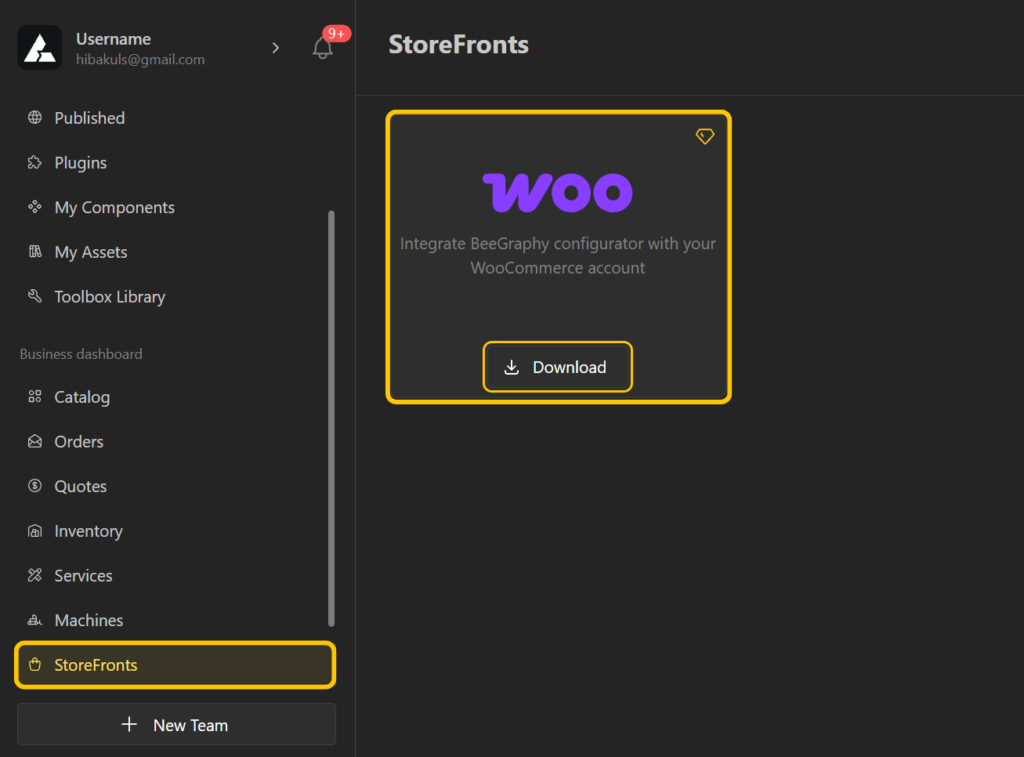
WooCommerce Support
Businesses can now sell configurable, parametric products directly through a WooCommerce storefront, connecting the Configurator to a real online shop.
- Downloadable plugin: grab it from the Store-fronts page to connect your WooCommerce store.
- Quote-to-cart with token redemption: an approved quote emails the customer a token; entering it unlocks the saved configuration, previews it, and drops it into the cart ready to buy.
- Automatic quote tagging: quotes from your client site are tagged “WooCommerce” for lead tracking.
A dedicated blog post and explainer video walking through the most important changes in action are on the way.
New Export Options
To help you take your work beyond the workspace, we’ve enhanced the export experience with several key improvements.
BAZON: Furniture Manufacturing Export
- Set Edge Banding: assigns banding materials per edge (e.g. PVC 0.4mm vs 2mm), tagging the geometry for the exporter.
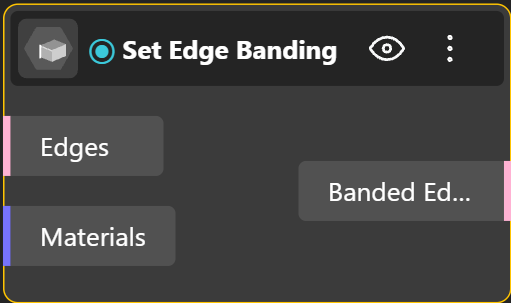
- Merge Operations: combines machine config, geometry, drilling/milling ops, and edge-banding into one part definition.
- BAZON Exporter: outputs a
.zipwith milling NC, edge-drilling NC, label-machine files (.xml/.cyc), and bitmap part previews.
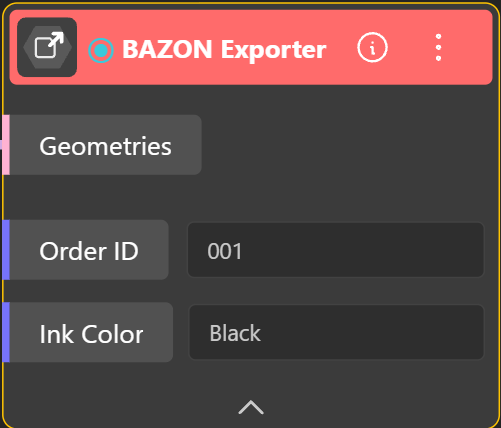
It auto-detects stock thickness for cutting depths, supports Fanuc and other post-processors, and reads nesting rotation so drilling stays accurate. Combined with the Toolbox’s Spatial Operation Mapper, placed-hardware data flows straight to production-ready output.
DXF Point Export
Individual points can now be included in DXF exports. Drill points are automatically organized into their own layer and exported accurately for use in tools like AutoCAD and Rhino.
Three Render
A brand-new Three Render plugin brings Three.js-based rendering nodes to the editor, for GPU-efficient visual effects right in the viewport. Version 1.0.0 ships with two nodes:
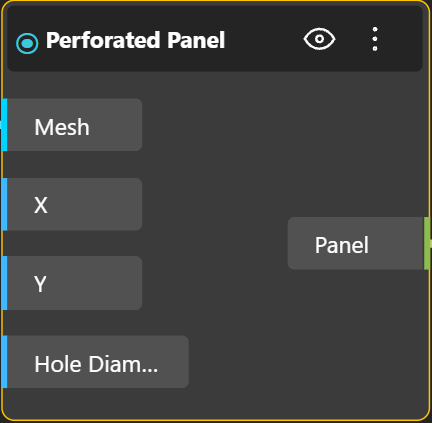
- Perforated Panel: Applies shader-based hole cutouts to a mesh, so you get perforated, patterned panels rendered efficiently on the GPU without actually cutting the underlying geometry.
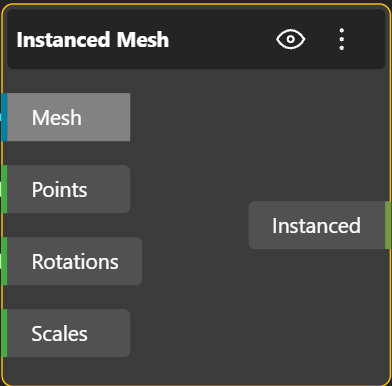
- Instanced Mesh: Creates an InstancedMesh from a single geometry placed at many positions, letting you render large numbers of repeated objects with minimal performance cost.
Workspace, Viewing & Collaboration Improvements
This release brings a collection of workflow, viewing, and collaboration enhancements designed to make everyday work smoother, faster, and more intuitive.
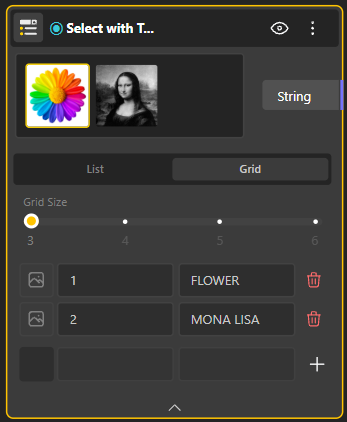
- Select with Thumbnails: a new Configurator input that extends the standard Select component by adding images to every option. Choices can be displayed as a thumbnail list or a grid of visual cards, making it easier to browse and compare options visually.
- Redesigned CAM Configuration Panel: A cleaner and more intuitive layout makes it easier to select machines, organize operations, and assign layers.
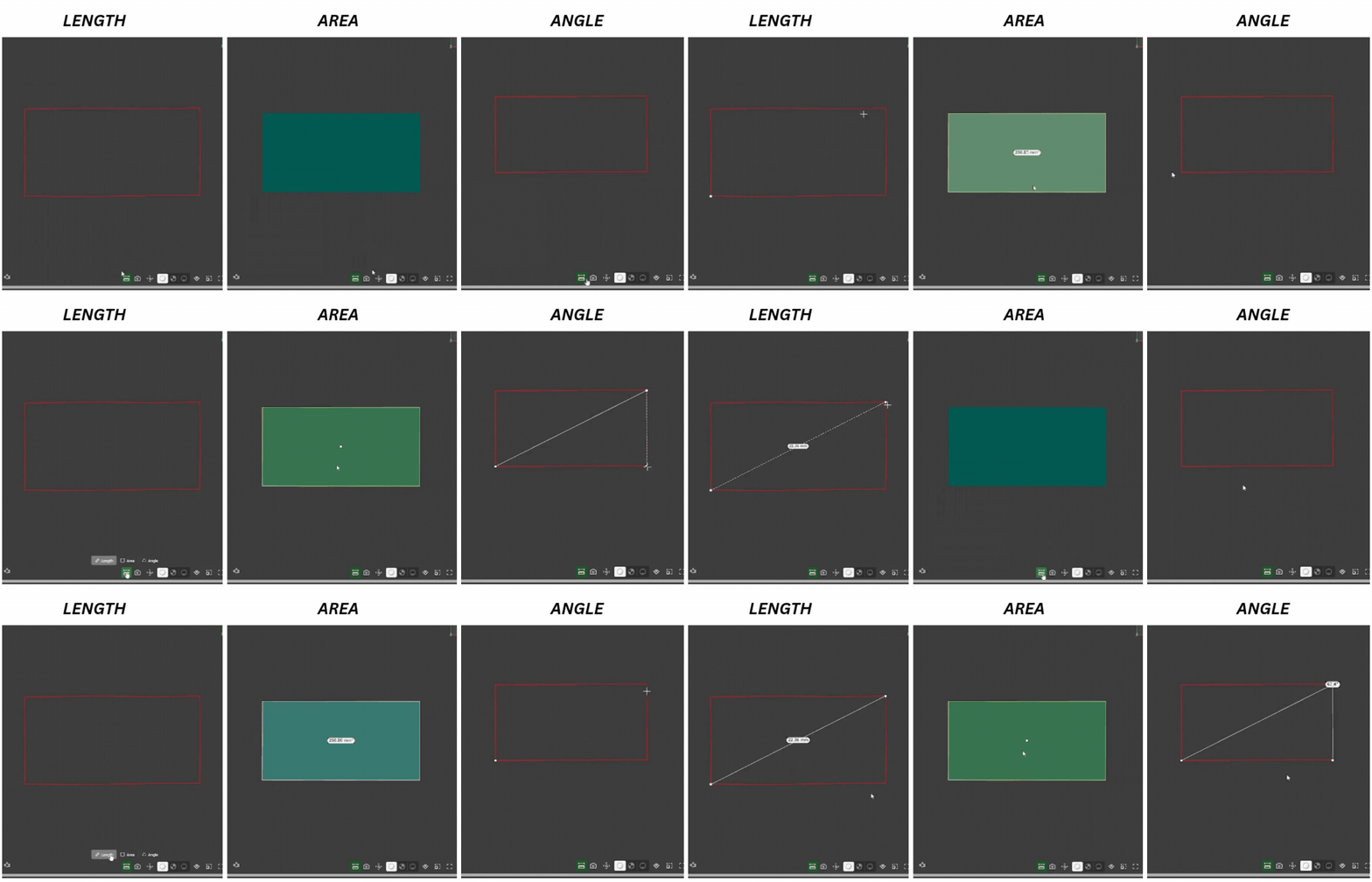
- Measurement Support: Measure length, angle, and area directly within the viewport. Measurements remain easy to read with labels that automatically face the camera.
- Capture View: Save specific camera positions directly within a model, making it easier to guide reviews, presentations, and walkthroughs.
- Smooth Camera Animation: Moving between saved views now feels more natural, with smooth camera transitions that immediately yield control when the viewer starts navigating manually.
- Asset Sharing:
- Models can now be shared together with their associated assets, such as textures and fonts, ensuring they open correctly for everyone who receives them.
- “USED” Badge: The badge that highlights Assets currently in use is now available across all asset types, including fonts, textures, vector graphics, and 3D objects.
- Duplicate in Inspector Mode: Viewers can create their own editable copy of a model without affecting the original project.
- Improved Memory Management: Unused data is now cleaned up more efficiently, reducing memory buildup during long sessions and helping the platform remain fast, responsive, and stable.
Upgraded Geometry Nodes
Core geometry nodes: Loft, Revolve Surface, NURBS Curve, Chamfer, Fillet, Boolean Solids, Extrude Surface, Sweep, and Curve Array, have all received substantial upgrades, adding greater control over shape creation, surface generation, edge treatment, curve behavior, and feature operations, with full backward compatibility.
This release also includes a wide range of UI improvements across the platform – reorganized panels, better navigation, and countless quality fixes – many drawn directly from community requests. Thank you for the feedback; we’ve been listening.
From the nodes you build with, to the hardware you fit, to the machine code you send out the door — open up the editor and try the new tools. We can’t wait to see what you make!