Table of Contents
Turning a parametric idea into a product someone can actually buy usually means jumping between tools: one to design, another to plan the machining, a spreadsheet for materials and packing, and something else again to sell it. Every jump is a place where details get lost and work gets repeated.
The BeeGraphy November 2026 update is about closing those gaps. It covers everything we shipped from June to November 2026, building on the Toolbox plugin and automatic nesting from our June 2026 update. For each change below, we start with the problem it solves, then show what we built and how it works.
An AI Agent That Understands Your Graph
The problem: node graphs are powerful, but they are hard to read when you did not build them yourself, and even small changes take time. You have to find the right node type, know its port names and wire it into the right place. For someone new to BeeGraphy, an unfamiliar graph can feel like a wall of boxes and lines.
What we built: an AI Agent that lives in the editor, next to your graph. Open it from the sparkle icon in the top-right corner and ask, in plain language, what a graph does or what you want changed.
The agent in the BeeGraphy November 2026 update does not guess. It works with the same building blocks you do: it reads the graph, searches the node library and its documentation, checks each node’s ports, and only then adds nodes, sets values and makes connections, one step at a time. Every step is listed in the chat, and every edit appears as a card you can undo. Nothing happens behind your back.
Around that core, the chat in the BeeGraphy November 2026 update is designed to stay out of your way:
- Starter prompts: every chat opens with suggestions based on your model, such as “Explain what this graph does”, so you never start from an empty box.
- A transcript you can read: answers are formatted like a short document, with lists and bold node names.
- Follow-ups while it works: type your next question while the agent is busy; it sends as soon as the current answer finishes.
- Sessions and history: start a new chat with one click, rename sessions, and come back to earlier conversations on the same model.
- Smarter answers: the agent refers to nodes by meaningful names and shares its read tools with browsers that support WebMCP.
AI Images for Products and Plugins
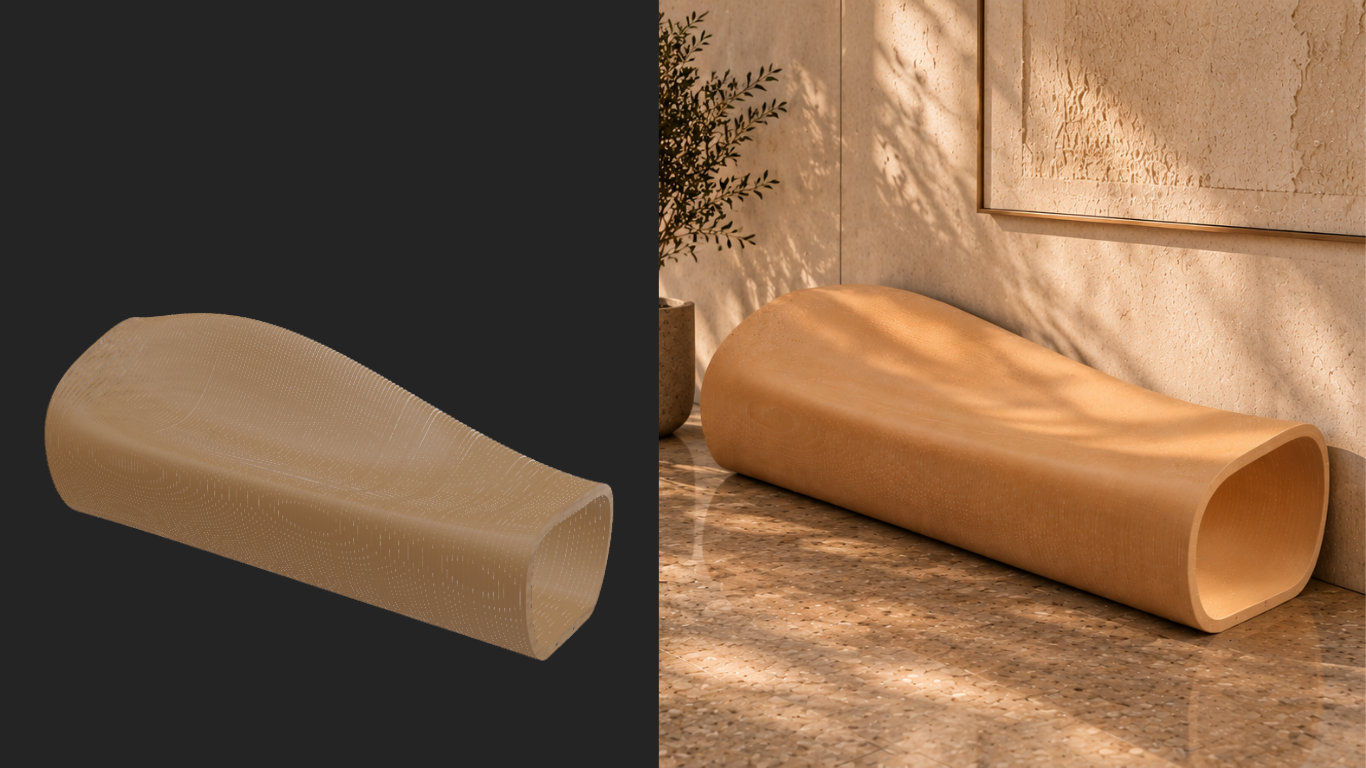
The problem: a parametric product is hard to sell when the customer cannot picture it in their own space, and plugin authors spend hours writing documentation and release notes by hand.
What we built: in the BeeGraphy November 2026 update, AI Preview turns a model into an AI-generated visual, with a progress display while each image is generated. AI Interior Preview brings AI image rendering of production models into the configurator wizard, so a shopper can see the product they configured placed in a room. For plugin authors, node docs are now rewritten and indexed with AI, and every release drafts its own release notes.
Two Kinds of AI Credits
Chatting with the agent and rendering images are very different kinds of work, so the BeeGraphy November 2026 update keeps them in two separate pools, each with its own place in Organization settings.
- AI chat credits (Members tab): a daily allowance per member for the AI Agent chat in the editor. Admins set how many credits each member gets, the tab shows how many the team has used, and every answer shows what it cost.
- AI image credits (Budget tab): the organization balance used for AI image rendering of production models, such as AI Interior Preview. Admins can top up the balance and set an AI spending limit, and generations pause when the limit is reached.
CAM: Set Up Machining Once, Reuse It Everywhere
The problem: in most workflows, machining is planned part by part. The same machine cuts the same materials with the same steps every day, yet someone still has to set up every job again, and every manual setup is a chance to forget a step.
What we built: Sequences and CAM Recipes. In the BeeGraphy November 2026 update, every machine gets its own page with its specifications, post-processor and work envelope, plus tabs for its Sequences, Materials and Tools. A Sequence is an ordered list of operations for that machine, which you test on a production model and save as a reusable CAM Recipe.
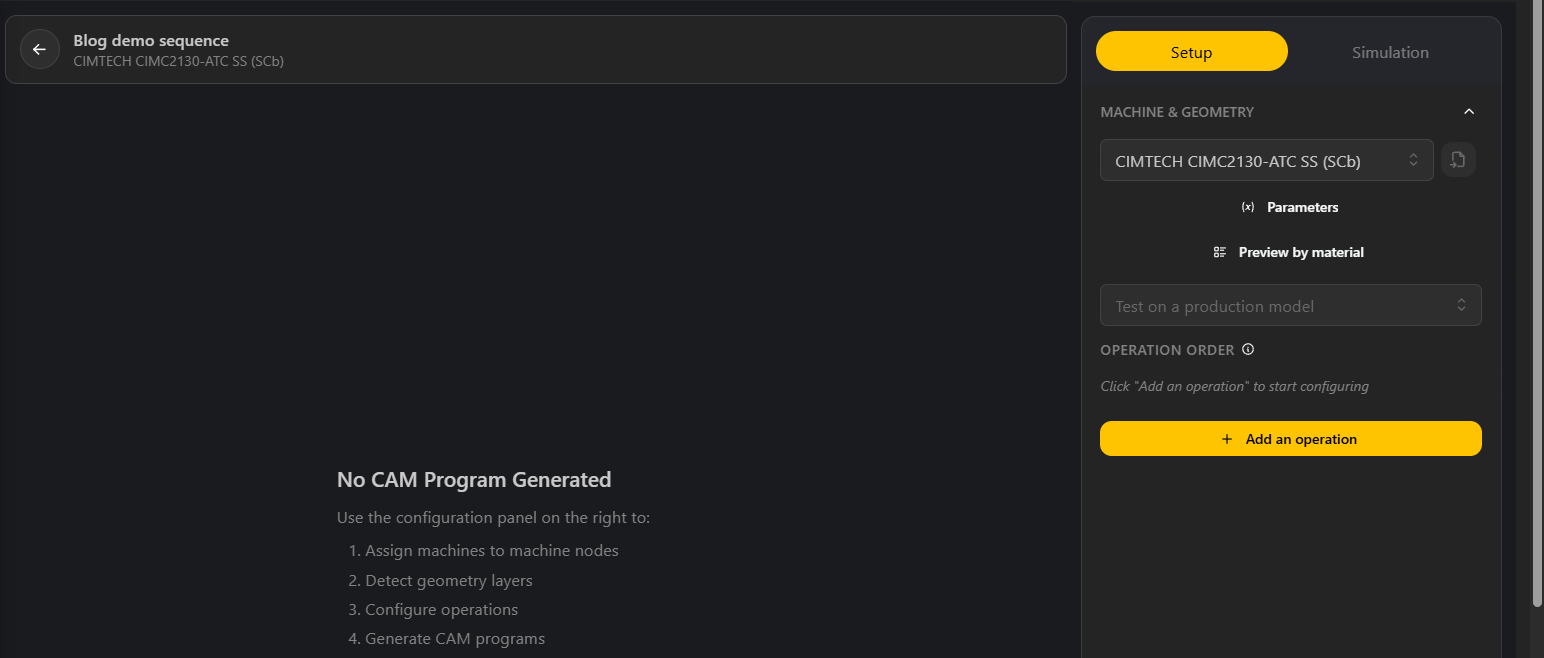
The key is that each step knows which parts it applies to. A step can be limited by material thickness, material group and part width or length, and CAM is generated from the material assigned in your graph. One Recipe can therefore handle a whole mixed order: the right steps run on the right parts automatically, and you can preview a Sequence by material before you cut anything.
New 3D Machining Strategies
The problem: a single finishing pass rarely suits a whole 3D surface. Large tools cannot reach narrow valleys, steep walls end up with visible marks, and roughing leaves stock behind on deep parts.
What we built: new strategies in the BeeGraphy November 2026 update, each aimed at one of those cases.
- Valley Re-Machining: goes back into narrow valleys with a smaller tool after a larger one could not reach.
- Plateau Machining: finishes the flat areas of a part on their own.
- Steep-Area Parallel: uses horizontal passes on steep walls, where a regular finishing pass leaves marks.
- Horizontal and Plunge Re-Roughing: clears the stock left after roughing, for faster cleanup on deep parts.
- Improved Pocketing: pockets now clear more cleanly and predictably.
Dogbones for Joints That Fit
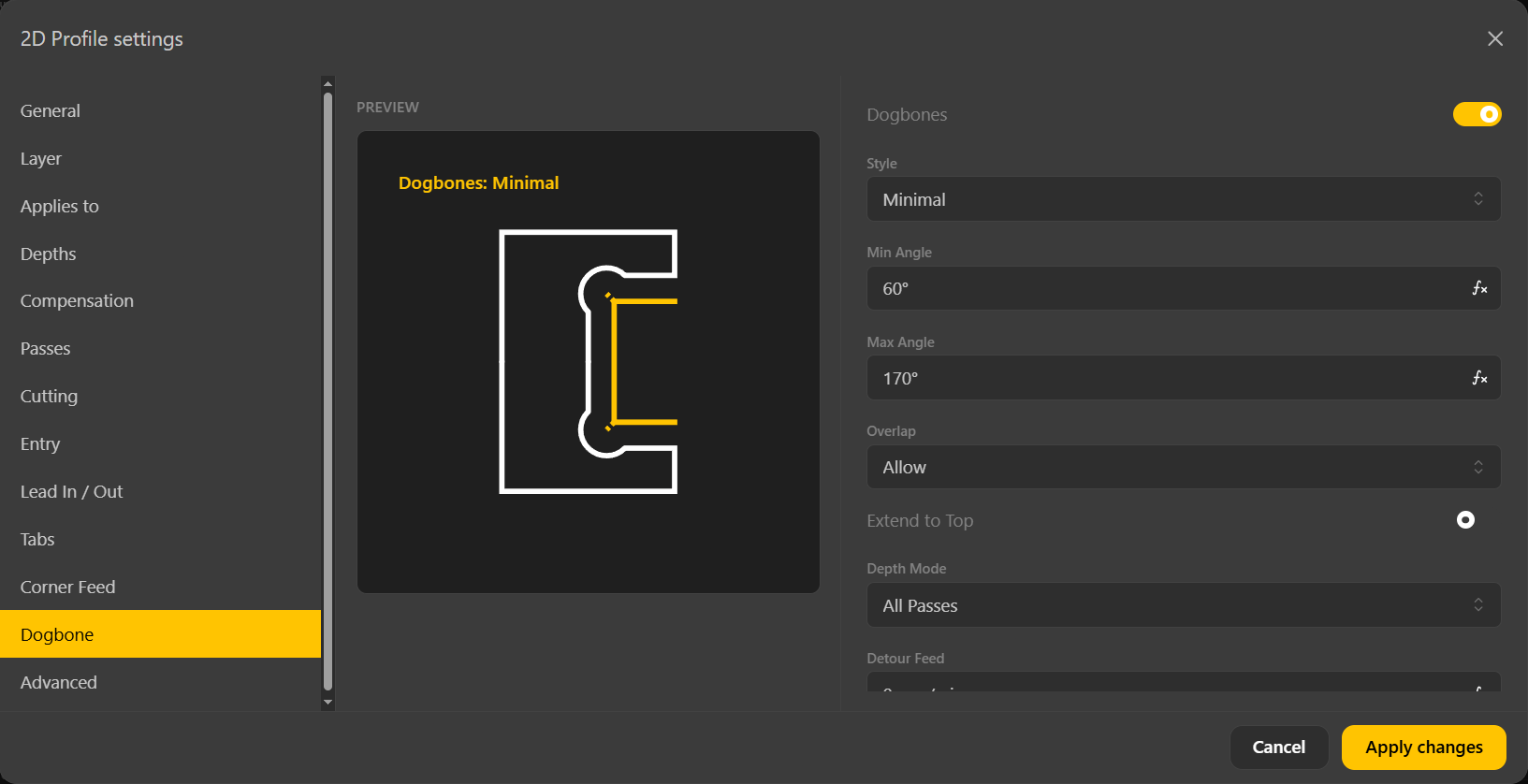
The problem: a round cutter cannot make a sharp inside corner. On slot-together furniture and flat-pack parts, those rounded corners stop the joints from closing.
What we built: a dogbone toolpath in the BeeGraphy November 2026 update that adds small relief cuts in inside corners automatically. You choose the style, the angle range it applies to and the depth mode, and a live preview shows exactly where the cuts will go.
A CAM View That Shows Where to Start
The problem: CAM settings were easy to get lost in, and it was not always clear which geometry an operation would cut.
What we built: in the BeeGraphy November 2026 update, a CAM view split into Setup and Simulation tabs, with a step-by-step guide when nothing has been generated yet and feeds and speeds hints along the way. Each operation is assigned to a layer, and a color-coded layer table maps colors to cutting, marking, engraving and internal cutting, so you decide exactly what gets machined.
The BeeGraphy November 2026 update also adds support for more machines: Isel machines with Isel NCP output and a ready-made Isel OverHead M40 Gantry preset (see the Isel website for the machines it covers), the Filato (Syntec) post-processor for 3-axis routers, per-material spindle speeds and feeds, and a minimum offcut size.
Production: From Model to Shop Floor
The problem: a 3D model is not yet a production job. The shop floor needs cut sizes, edge banding, sheet layouts, part labels and packing, and that information is usually rebuilt by hand in other software after the design is finished.
What we built: a production workflow in the BeeGraphy November 2026 update that takes it straight from the model, starting with real materials in the graph and ending with parcels on the quote.
How It All Works
- Assign real materials with the new material nodes, so every part knows its banded edges and its true cut size.
- Nesting respects grain direction, and parts too small for the router go to the format saw instead.
- Every part gets an ID that follows it onto printable PDF cutting maps, with a material summary page for the whole job.
- Packing groups the finished parts into parcels, and those parcels appear on quotes and orders.
Behind those steps, the BeeGraphy November 2026 update adds:
- Materials and services: material nodes for texture, linear, count, sheet, volumetric, weight, area and profile materials; a rebuilt Materials area with stock status, pricing strategy and tags; services such as cutting or banding priced against the right material; and a Materials tab in the manifest that controls which materials a model shares.
- Cutting and nesting: banding lengths flow into the Calculation panel; grain direction or rotation can be locked per part; parts under 30 × 30 mm by default are routed to the format saw; and production lines hold per-material router settings, tool configurations and a banding reserve.
- Paperwork for the shop: the production PDF adds up sheet count, placed area, material utilization and cut length per material, plus banding lengths with the line’s banding reserve.
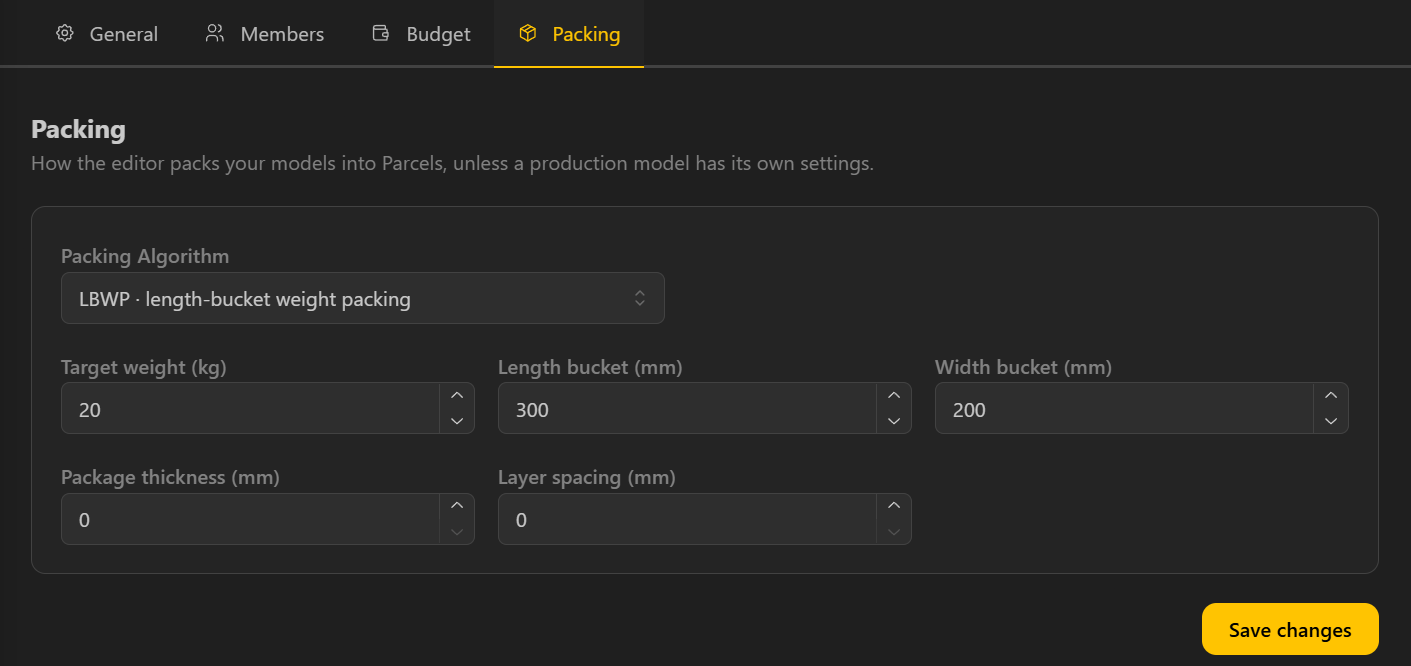
- Packing and shipping: organization-wide packing rules (algorithm, target weight, length and width buckets, package thickness and layer spacing), and a Parcels Panel that shows the parcels a model ships in, with their size and weight.
Introducing Brand: A Manufacturer Network for Sales Agencies
The problem: sales agencies sit between three groups: designers with ready-to-produce products, manufacturers with machines and materials, and businesses that want products to sell. To win a business over, an agency needs a catalog of products that a real manufacturer can actually make, and until now putting that catalog together meant files, emails and spreadsheets.
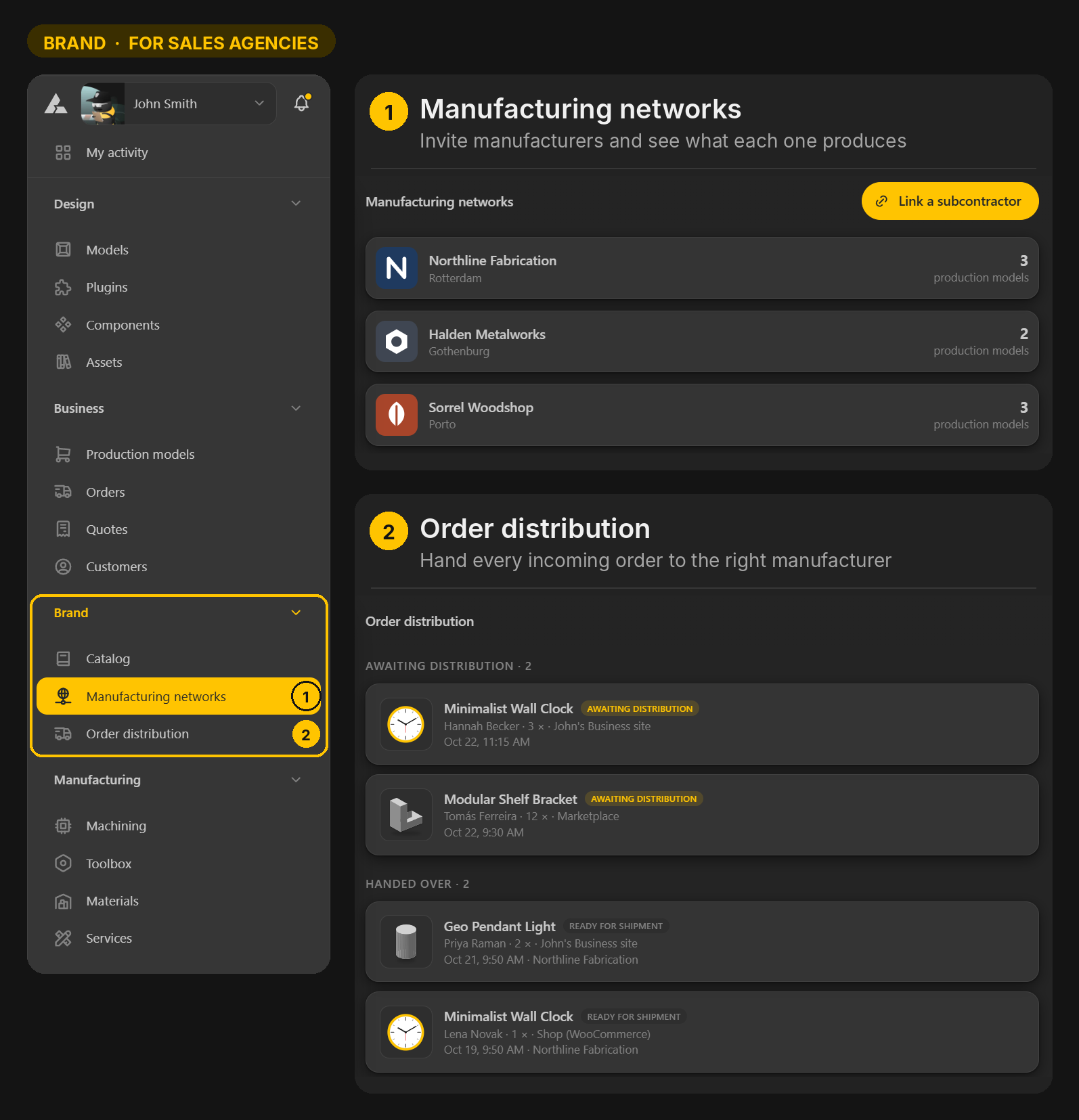
What we built: Brand, a new fourth section in the workspace in the BeeGraphy November 2026 update. It is not visible to everyone: Brand is available only to sales agencies, and it gives them one place to build and run their own manufacturer network. Agencies use it to build a catalog of production-ready items with their manufacturers, then pitch that catalog to businesses.
How It Works
- The agency invites manufacturers to join its manufacturer network.
- It showcases production-ready models from the BeeGraphy catalog to those manufacturers.
- Each manufacturer turns the models it wants to make into production models, set up for its own machines, materials and hardware.
- The agency collects those production models into its own catalog of items.
- It pitches that catalog to businesses. Businesses that sign on list the catalog items on their stores and e-commerce platforms, and Order distribution sends every incoming order to the right manufacturer in the network.
With Brand in the BeeGraphy November 2026 update, manufacturers get a steady pipeline of designs that are already prepared for production, businesses get a ready catalog of real, manufacturable products they can sell without designing them from scratch, and agencies get one place to build their catalog, pitch it to businesses and route every order that comes in.
Four Sections, One Platform
With Brand in place, the workspace in the BeeGraphy November 2026 update is organized around the four roles that take a product from idea to customer.
- Design: where designers create models and production-ready models, publish them on the marketplace, and build plugins, assets and components.
- Business: where businesses manage their sales and operations from BeeGraphy dashboards, including production models, orders, quotes, storefronts and portfolio.
- Brand: where sales agencies invite manufacturers to their network, help them convert production-ready models into production models, build a catalog of those items, and pitch it to businesses to sell.
- Manufacturing: where manufacturers list their machines, their Toolbox Library, the materials they have in stock and the services they offer.
A Workspace That Is Easier to Find Your Way Around
The problem: the workspace grew one feature at a time. Each area had its own layout and its own menus, so finding things depended on knowing where they had been added.
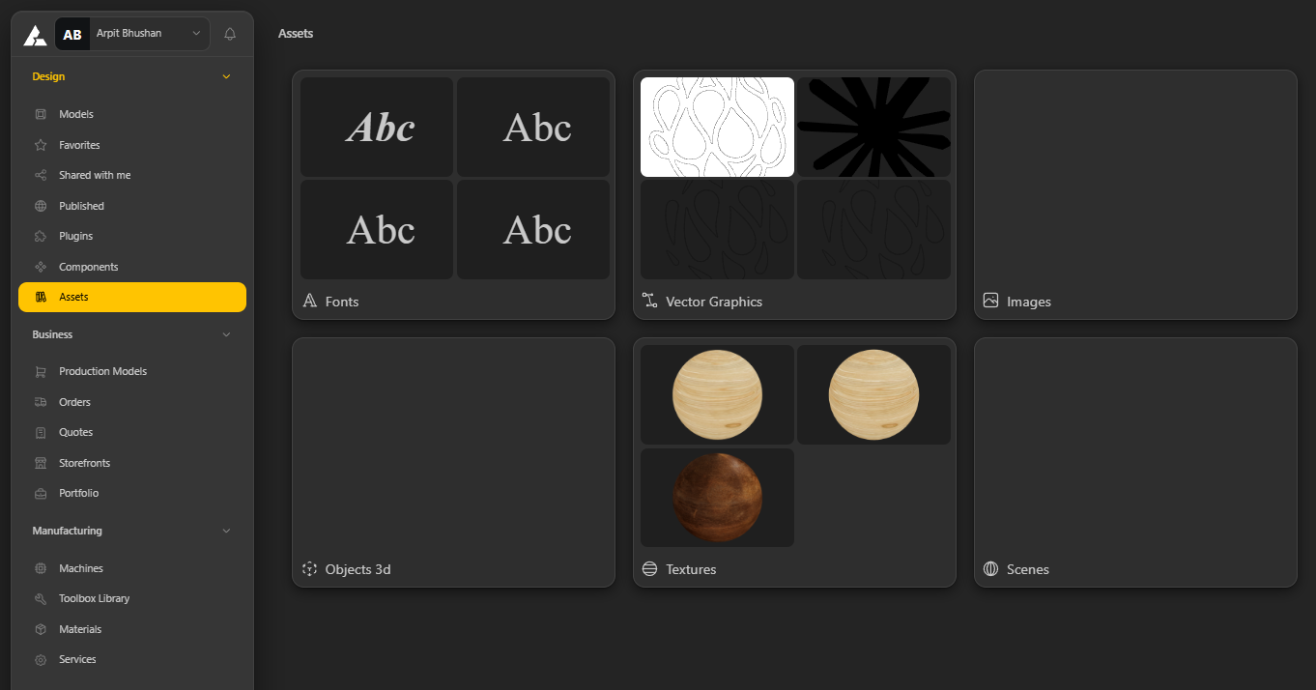
What we built: one design system for the whole workspace and the BeeGraphy site. The sidebar now groups everything by role, into Design, Business and Manufacturing (plus Brand for sales agencies), and models, published models, favourites, Shared With Me, assets and the Toolbox Library all share the same card style. Organization screens were redesigned too, with members, invites with notifications, roles, budget and packing rules in one place.
Plugins and Documentation
The problem: it was hard to find which plugin had the node you needed, and plugin authors had no clear view of where a release stood.
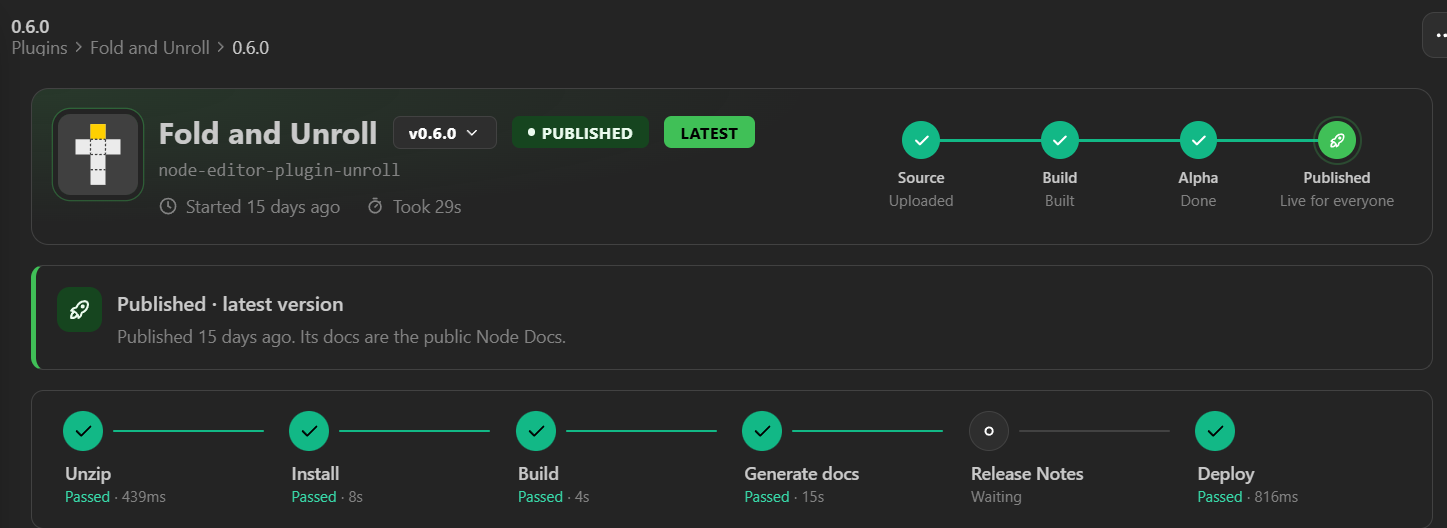
What we built: with the BeeGraphy November 2026 update, a searchable plugin catalog of core packages and community plugins; a page for every node, with a node diagram, typed port cards, keywords and version history; and a page for every plugin with its README, release notes, versions and release journey. Every release runs through a visible pipeline, so authors can see exactly which stage passed.
Editor Improvements
The problem: small frictions add up. Hunting for a setting, rewiring a node or deleting logic just to test an idea costs a few seconds each time, many times a day.
What we built: a set of focused editor improvements in the BeeGraphy November 2026 update, each removing one of those steps.
Scopes: Run Only the Nodes You Need
The problem: one graph often serves several jobs. The same model drives the live preview, the files you export and the CAM programs for the machine, but each job only needs part of the graph. Running every node every time slows the editor down, and switching parts on and off by hand is easy to get wrong.
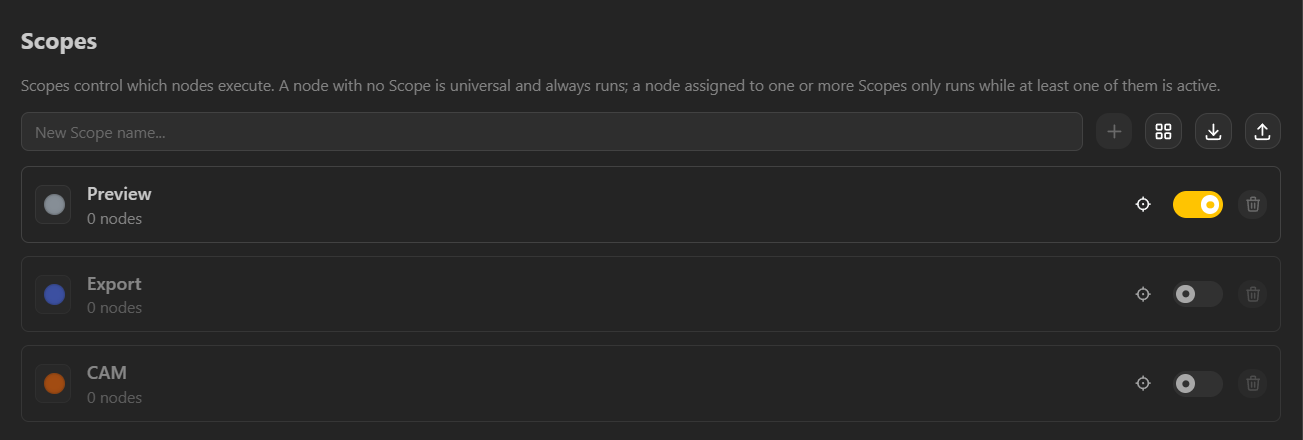
What we built: Scopes, found in the Settings modal. Scopes control which nodes run. A node with no Scope is universal and always runs, while a node assigned to one or more Scopes only runs when at least one of those Scopes is active. Every model starts with Preview, Export and CAM Scopes, and you can toggle each one on or off, see how many nodes it holds, create your own Scopes or start one from a preset, and import or export Scopes to reuse them in other models.
More Editor Improvements
- Enable or disable node groups: test a design with and without part of its logic, without deleting anything.
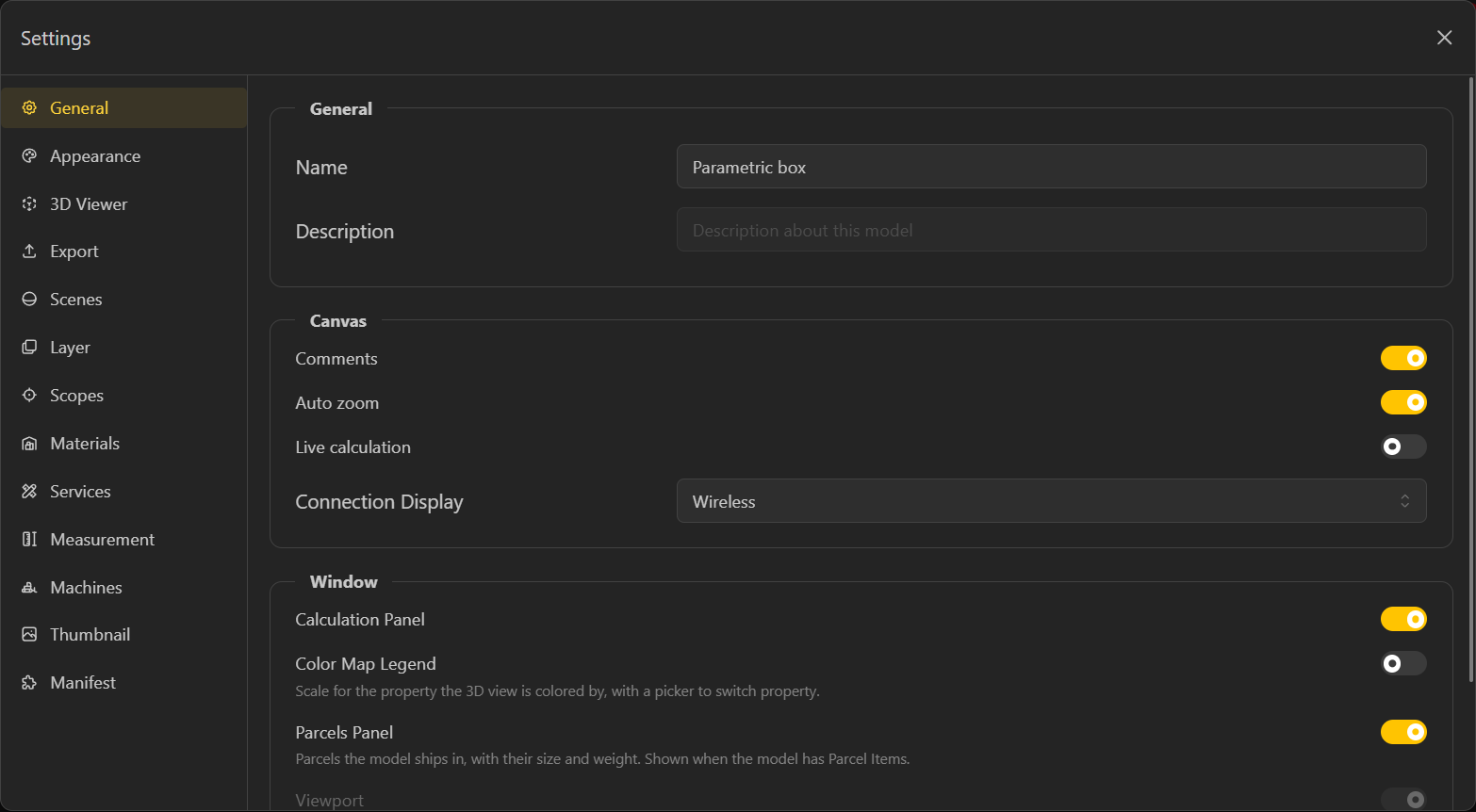
- One settings modal: model, canvas, viewer, export, materials, machines and manifest options in one place, with toggles for the Calculation Panel, the Color Map Legend and the Parcels Panel.
- Clearer connections: wireless connections show an indicator on both ports, and connections can be drawn as Default, Wireless, Faint, Linear, Step or Bump, so large graphs stay readable.
- Better range inputs and units: values format more clearly, min, max and step settings tuck away, and you choose the unit system for length, angle, mass, area, volume, time and density.
- Faster graph editing: drop a node onto an existing connection to insert it in between, and press Ctrl+D to pull it back out; drag and drop was rebuilt across the editor.
- Quicker access: pin the packages you use most to the top menu, and find Hardware and the Toolbox Library side by side in the new Toolbox menu.
- A better mobile editor: smoother zoom, scrolling and connection dragging on touch screens.
The BeeGraphy November 2026 update also includes many smaller UI improvements and fixes across the platform, many of them drawn directly from community requests. Thank you for the feedback; we have been listening.
That’s a Wrap for the BeeGraphy November 2026 Update!
Next, we will publish detailed tutorials on the AI Agent and CAM Recipes. New to machining? This overview of computer-aided manufacturing is a good place to start.
From the AI that builds with you, to the machines you program, to the parcels you ship out the door, open up the editor and try the new tools. Share what you build with the BeeGraphy community. We can’t wait to see what you make!