Scopes
Choose which parts of a graph run for the live preview, for export, and for CAM, so the Editor only does the work you need.
Scopes live in the Scopes tab of the Settings modal, and the main menu has a Scopes item as well. Every other tab of the modal is described on the Settings page.
Scopes: run only the nodes you need
One graph often serves several jobs: the same model drives the live preview, the files you export, and the CAM programs for a machine. Each job only needs part of the graph, and running every node every time slows the Editor down.
Scopes control which nodes execute. A node with no Scope is universal and always runs. A node assigned to one or more Scopes only runs while at least one of those Scopes is active.
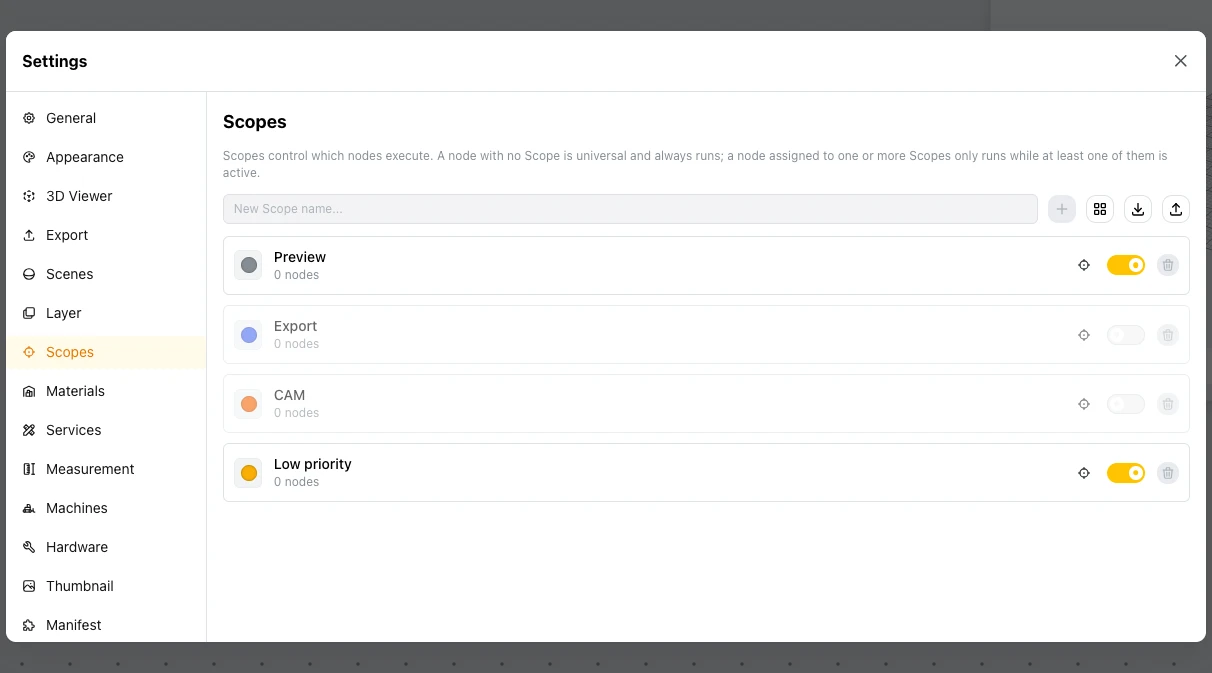
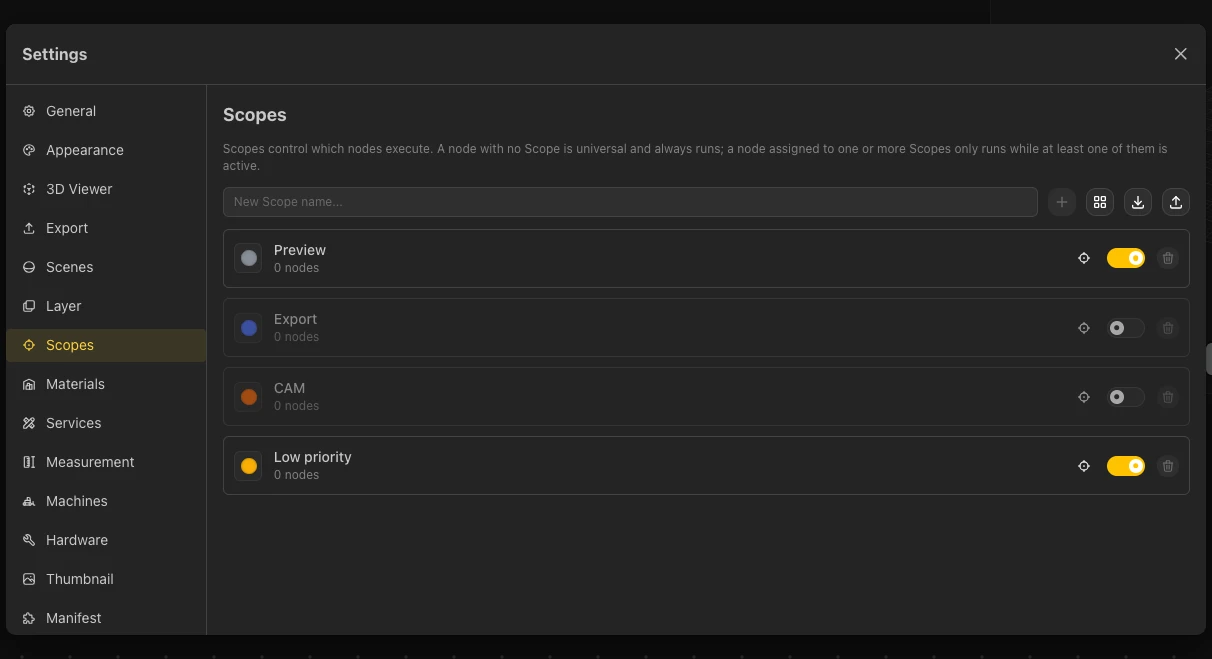
The Scopes tab
- Default Scopes. A model comes with the scopes Preview, Export, CAM, and Low priority, and the tab shows how many nodes each one holds.
- Switching a Scope on or off. Use the toggle on its row. Turned-off Scopes are dimmed, and their nodes stop running.
- Your own Scopes. Type a name in the New Scope name field and click the plus button to add one. Buttons next to it let you start from a preset and import or export Scopes, so you can reuse them in other models.
Other settings
Settings that keep large graphs readable and values in the units you expect are described on the Settings page: the connection style is an option in the General tab, and the units are set in the Measurement tab.
Learn More
Settings
Every tab of the Editor Settings modal
→
3D View
Display modes, navigation, settings, and camera controls
→
CAM View
G-code toolpaths for CNC and laser cutters
→
AI Agent
Build and edit graphs by chatting with the assistant
→