AI Agent
An assistant that lives next to your node graph. Ask what a graph does or what you want changed, and it reads the graph, builds the nodes, and shows every step.
Overview
Node graphs are powerful, but a graph you did not build yourself can feel like a wall of boxes and lines, and even a small change means finding the right node type, learning its ports, and wiring it in. The AI Agent takes care of those steps. Describe what you want in plain language - or ask what the graph already does - and it answers in a chat panel beside the canvas.
The agent works with the same building blocks you do. It reads the graph, searches the node library and its documentation, checks each node's ports, and only then adds nodes, sets values, and makes connections, one step at a time. You may see it called the AI Agent in the panel and the AI Assistant in your account.
Open the panel
Click the sparkle button in the top-right corner of the Editor. The BeeGraphy AI Agent panel opens on the right. Use the controls in its header to resize or expand it, or close it when you are done.
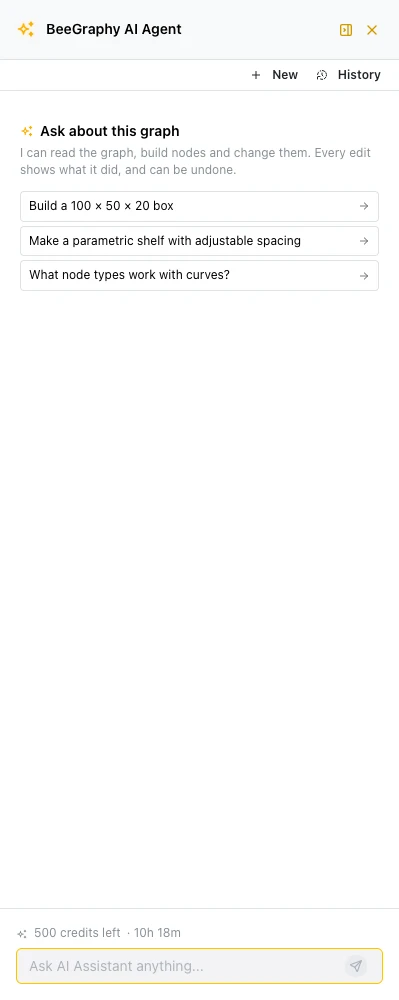
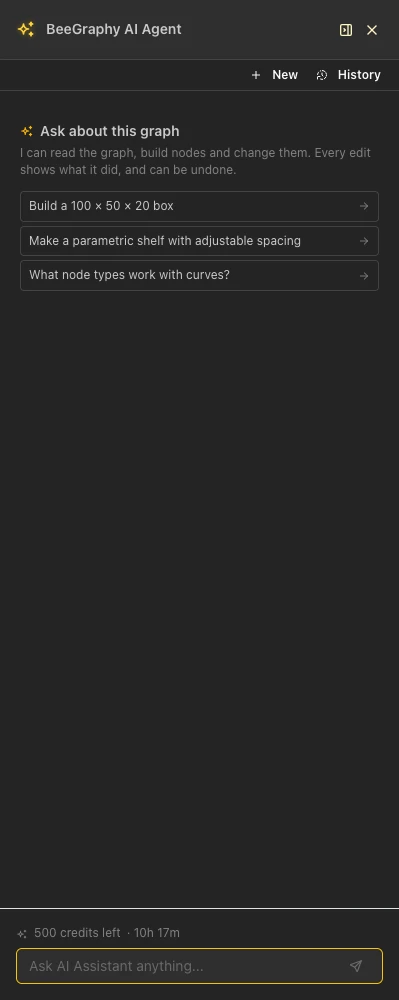
The AI Agent panel, with starter prompts and the credit counter.
Work with the chat
Starter prompts
Every new chat opens with suggestions, such as building a 100 × 50 × 20 box or asking which node types work with curves. Click one to use it, or type your own question in the box at the bottom.
New chat and History
Click New to start a fresh conversation. History brings back earlier conversations on the same model, and you can rename sessions to find them later.
Follow-ups while it works
You can type your next question while the agent is busy. It is sent as soon as the current answer finishes.
Readable answers
Answers are formatted like a short document, with lists and bold node names, so you can follow what the graph does.
What to ask
- Explain a graph. "Explain what this graph does" is a good first question on a model you did not build.
- Build something small. Ask for a box of a given size, a slider connected to a value, or a parametric shelf with adjustable spacing.
- Change an existing graph. Ask it to add a slider and connect it, or to set a value on a specific node.
- Find the right node. Ask which node types work with curves, surfaces, or lists. The agent searches the node library and documentation for you.
AI credits
Chatting with the agent costs AI credits, and each answer shows what it cost. Every account gets a daily allowance of 500 credits; the counter at the bottom of the panel shows how many are left today and when they reset.
- Your own usage: open Account → AI Credits to see what you have left and used today, your daily allowance, the last 30 days, and a request history.
- In an organization: admins set the daily allowance for each member on the Members tab of the organization settings, which also shows how many credits have been used.
- AI image generation: rendering images, such as an AI preview of a production model, uses the organization balance instead. Set its limit on the Wallet tab.
Organization wallet and AI limits →
Learn More
BeeGraphy Editor
Geometry, the node graph, the viewport, and shortcuts
→
Node Structure
Ports, connections, states, groups, and copying
→
Nodes Reference
Every node family the agent can build with
→
Scopes and Settings
Control which nodes run, and tune the model settings
→