Business
Production Models, Orders, Quotes, and Storefronts in the BeeGraphy workspace: set up models for production, receive orders, and send quotes.
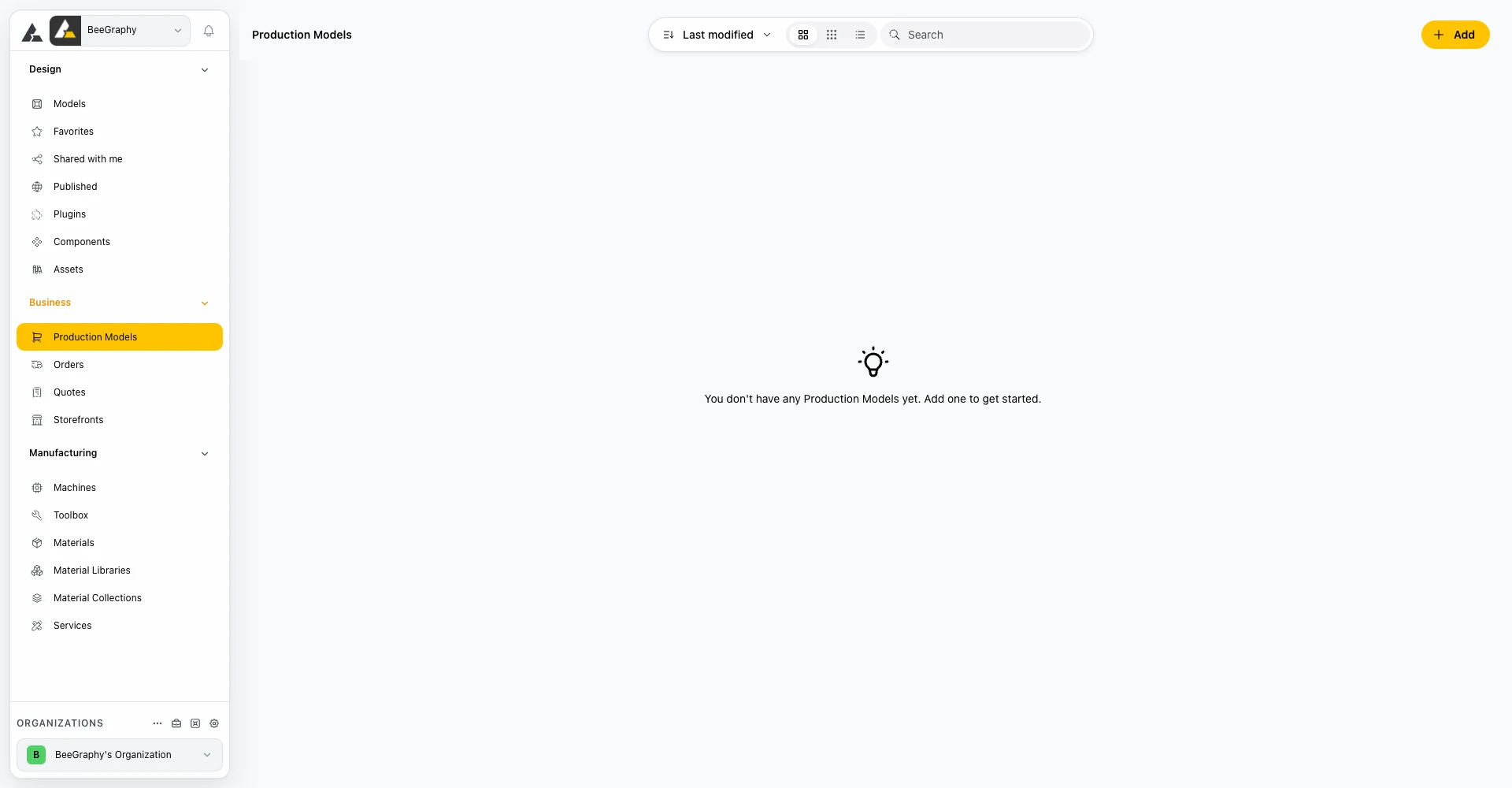
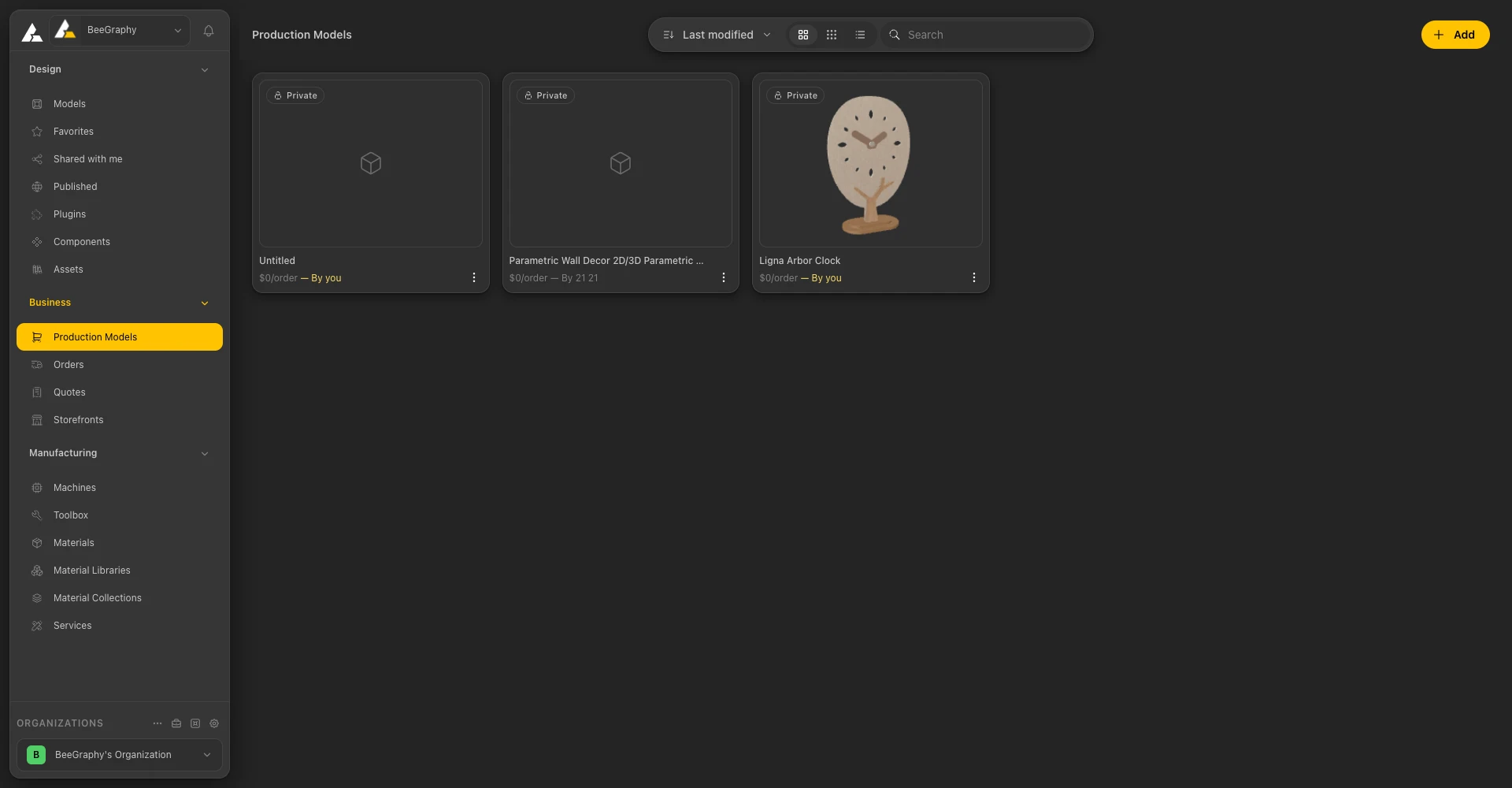
Business - Production Models
01 / Overview
What Business Is
Business is the group of the workspace sidebar where a model becomes something you can sell. It has four pages: Production Models, Orders, Quotes, and Storefronts. Like the rest of the workspace, they show the organization you have selected in the switcher at the bottom of the sidebar.
02 / Production Models
Production Models
A production model is a model set up to be produced. The page has the same toolbar as Models - a sort button and a search field - and a yellow Add button. Each card shows a thumbnail, a Private badge while the model is not published, the name, the price per order, and who owns it ("By you" or the name of another organization).
Adding a production model
Click Add and choose where the model comes from:
- Browse Marketplace Models: pick a production-ready model from the Marketplace.
- Using marketplace model Link: paste the link of a Marketplace model.
- From workspace: use a model you created in the Editor.
- Using model ID: enter a model ID directly.
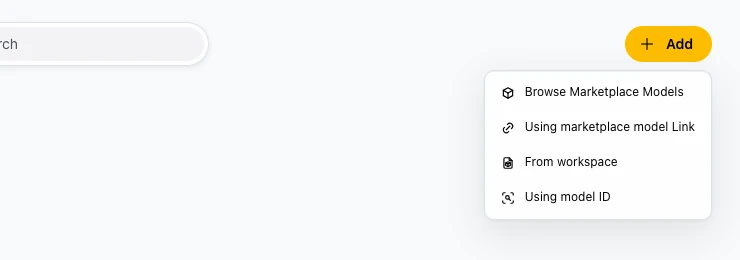
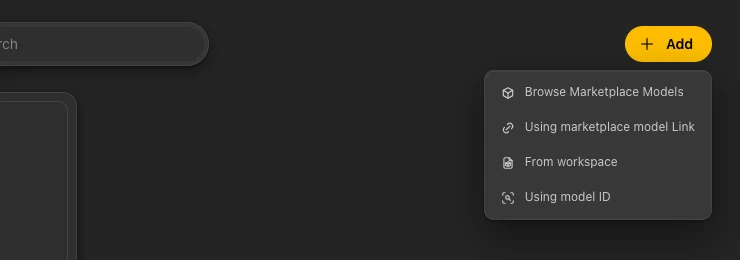
The Add menu
The card menu
The three-dot menu of a production model card has three items: Rename, Publish, and Remove.
The production model setup page
Click a card to open the production model. The page shows the model with a Calculation Panel button, and a Production Model setup panel on the right with these entries:
- Link materials, Link services, Link machines, Link hardware: connect the production model to the Manufacturing items it uses.
- Packing: the packing settings of this model.
- Production Package: the production files of the model.
- Price & availability: the price and availability of the model.
- Set up wizard: the yellow button under Wizard, which walks you through the setup.
- Settings: the settings of the production model.
- Translate and Assign language: under Multi-language support.
- Publish: under Visibility. It shows Private until the model is published.
- Preview: opens a preview of the production model.
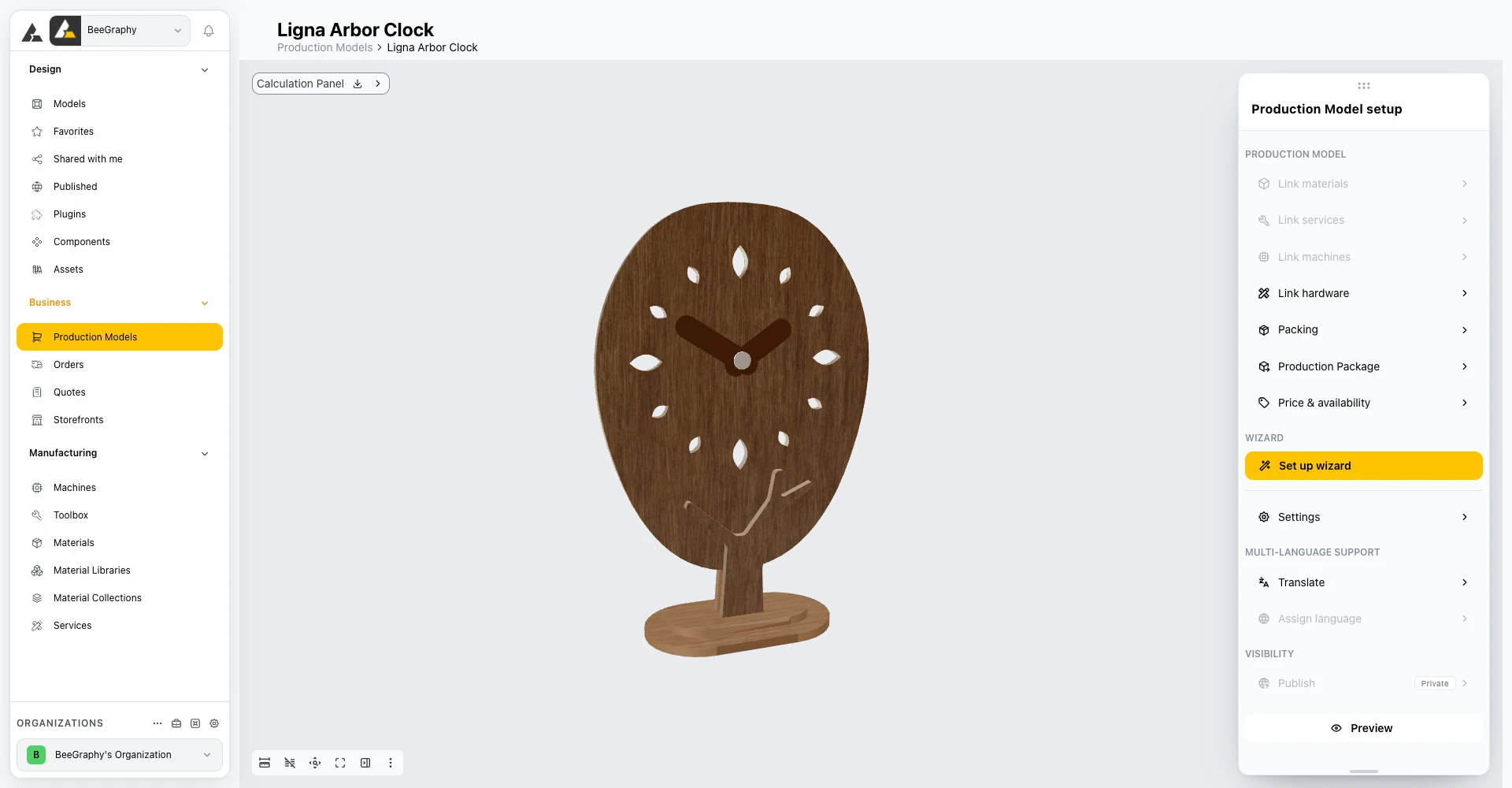
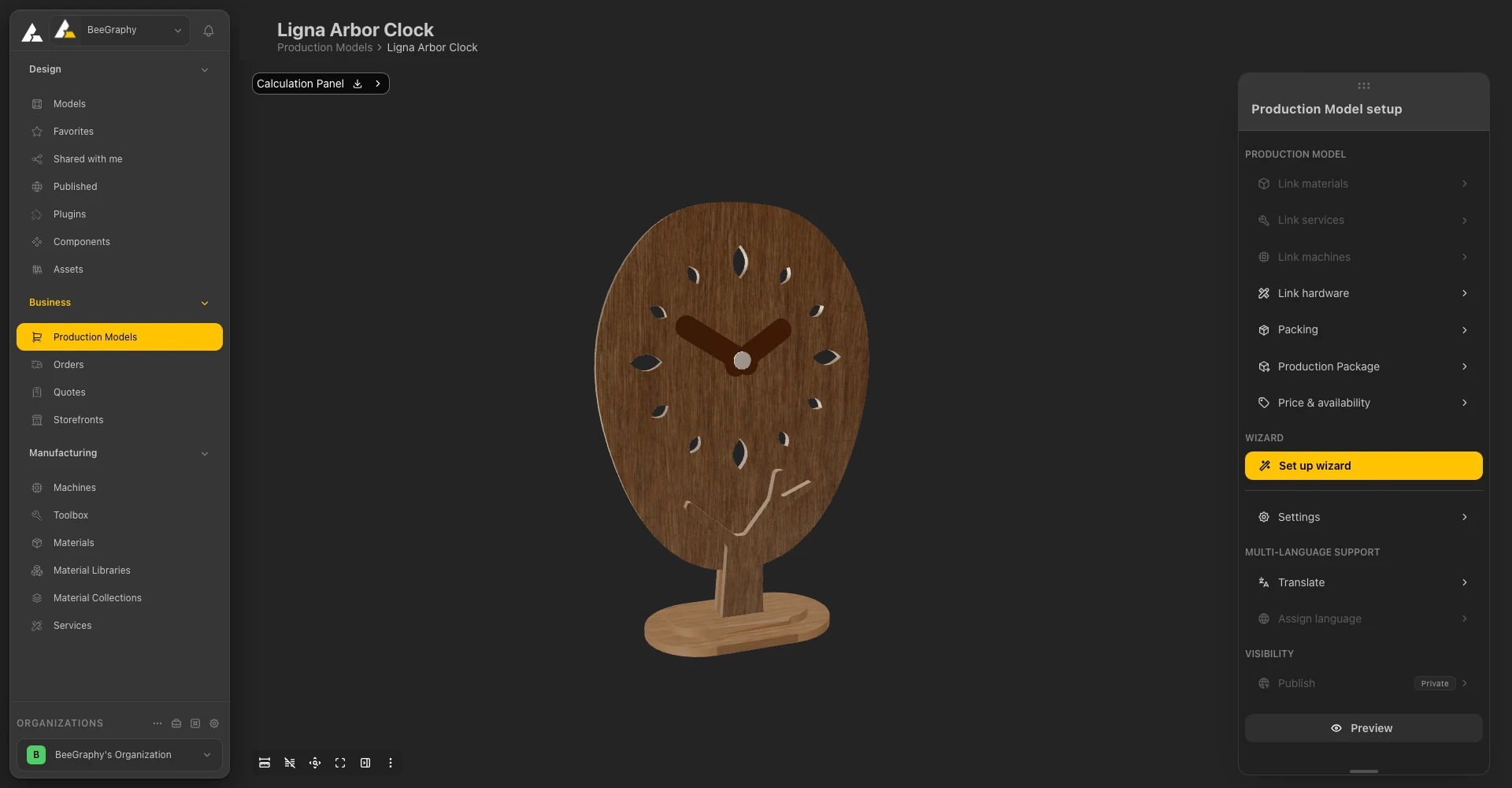
A production model and its setup panel
03 / Orders
Orders
Orders lists the orders you receive. Use the filters under the toolbar to narrow the list: All orders, From market, and From WooCommerce. Until you receive an order, the page says "Once you receive orders they'll be displayed here."
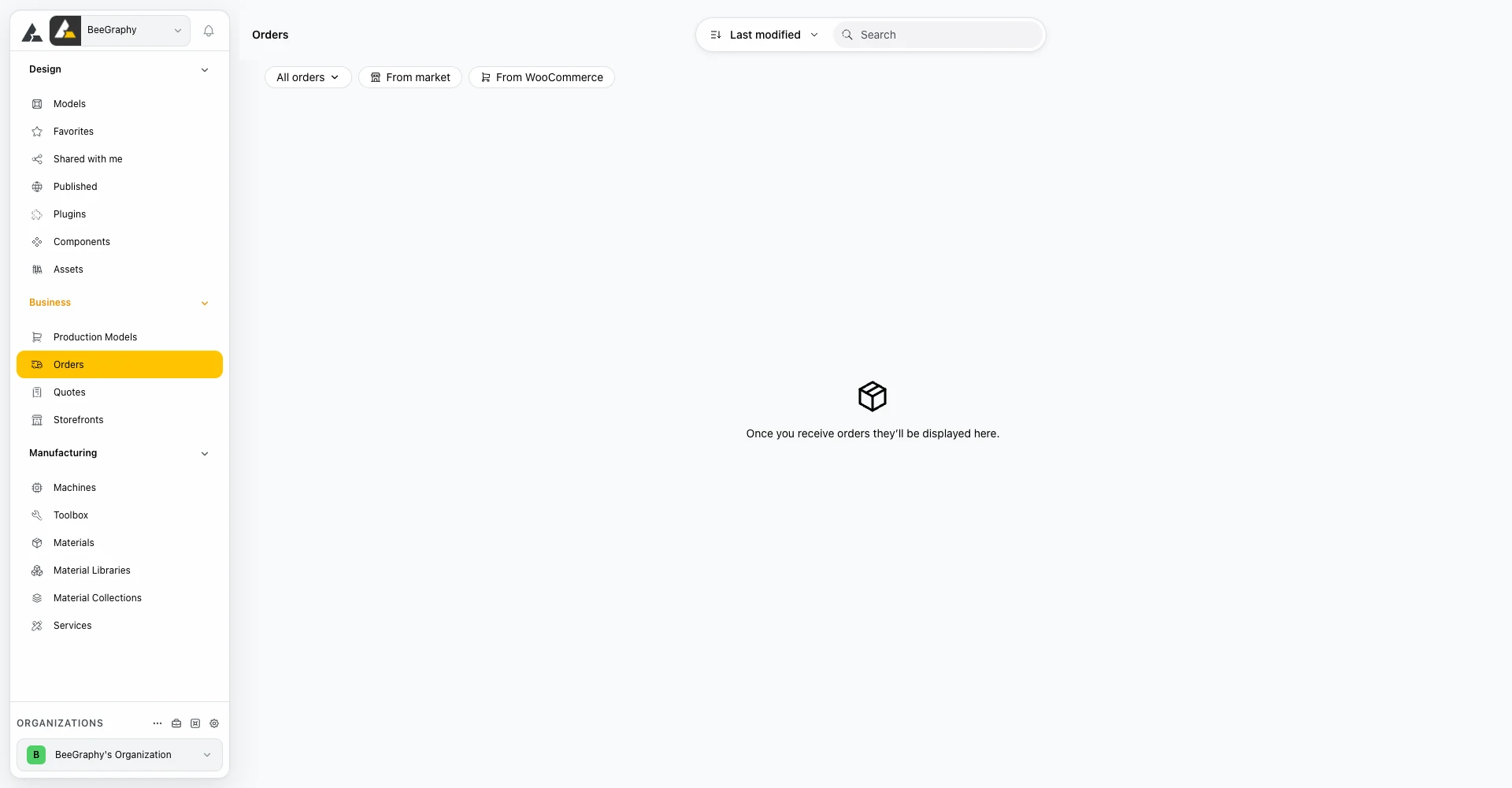
The Orders page, with no orders yet
04 / Quotes
Quotes
Quotes lists the quotation requests and quotations of your organization. Each card shows the customer, a status badge, a WooCommerce badge for requests that came from a WooCommerce store, the model with its thumbnail, the quote ID and quantity, the submitted and expected dates (or the lead time), and the price on the right.
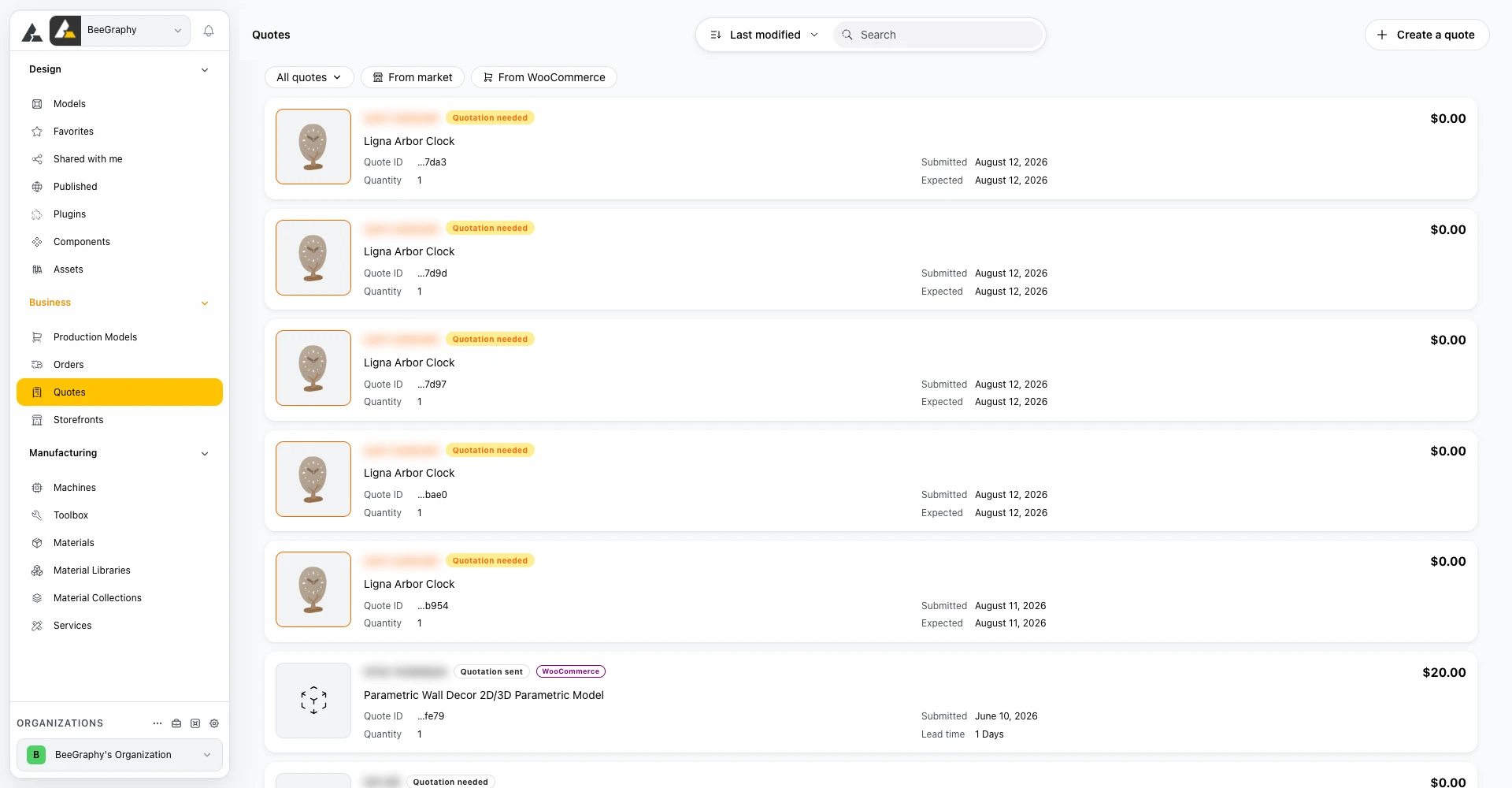
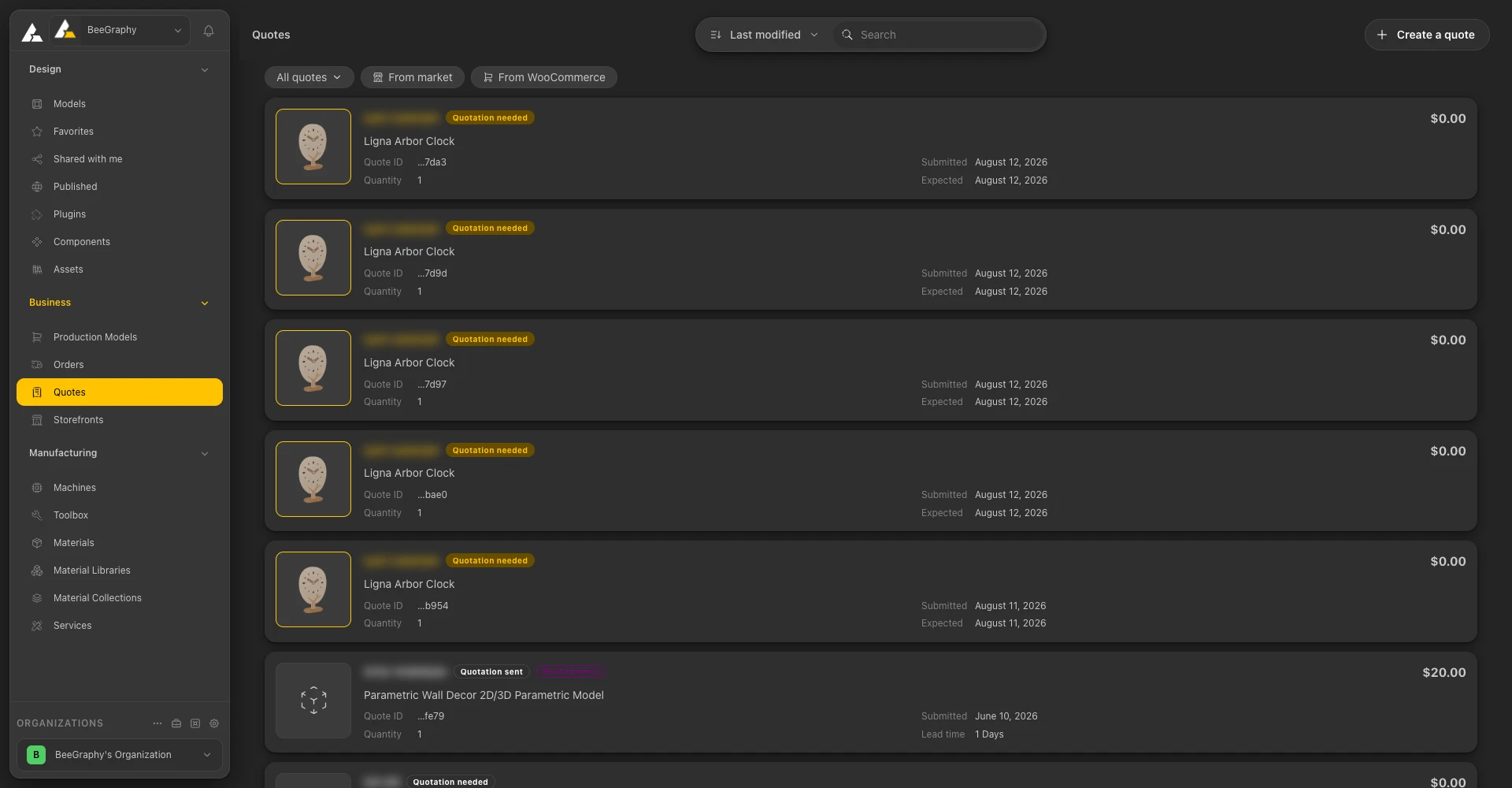
The Quotes page (customer names are blurred)
Filters and statuses
The All quotes menu filters by status. From market and From WooCommerce filter by where the request came from.
- Quotation needed
- Quotation sent
- Accepted
- Revoked
- Cancelled
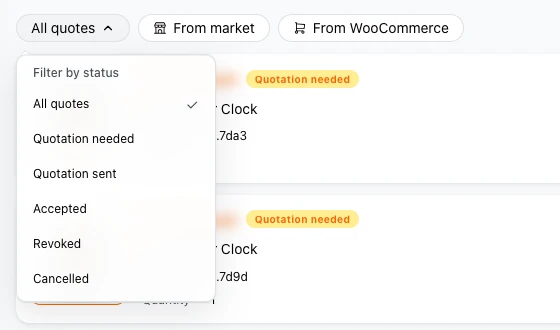
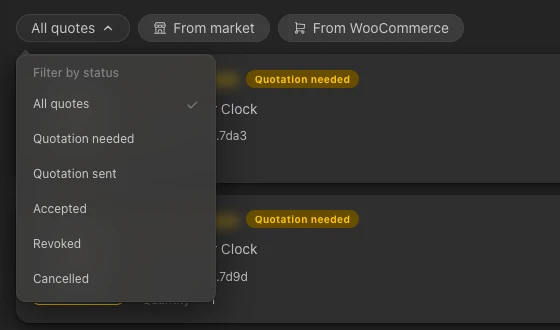
Filtering quotes by status
Creating a quote
Click Create a quote. In the dialog, select a production model, then enter the recipient's email, full name and phone number, set the quantity, and click Next.
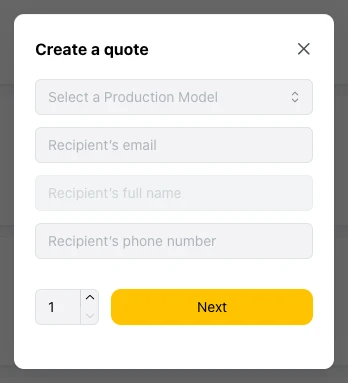
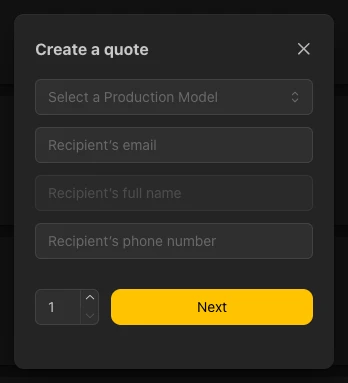
The Create a quote dialog
The Editor Workspace page describes how a quotation turns into an order.
05 / Storefronts
Storefronts
Storefronts is where you connect BeeGraphy to a store. The page reads "Integrate BeeGraphy configurator with your WooCommerce account" and has a Download button.
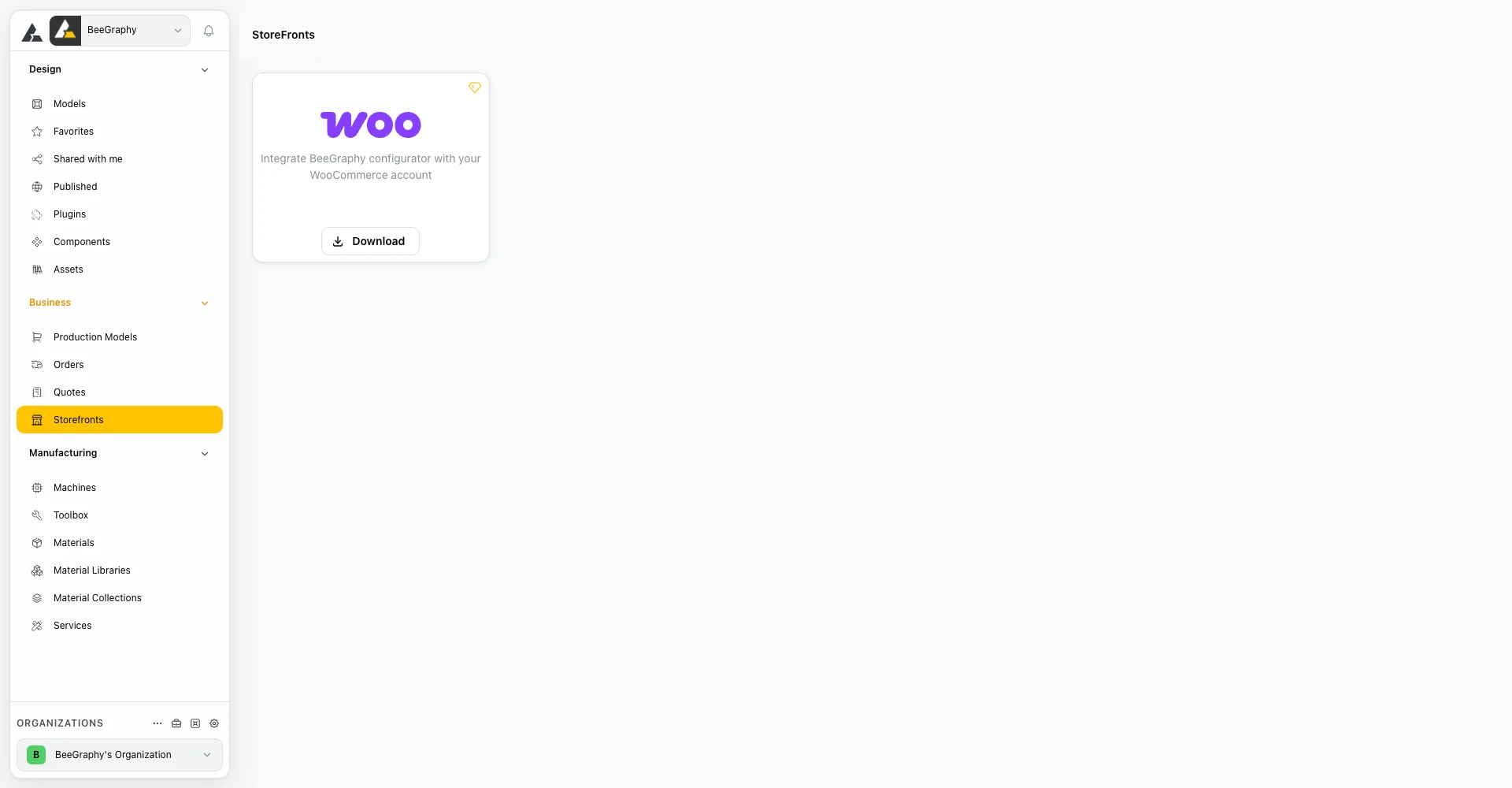
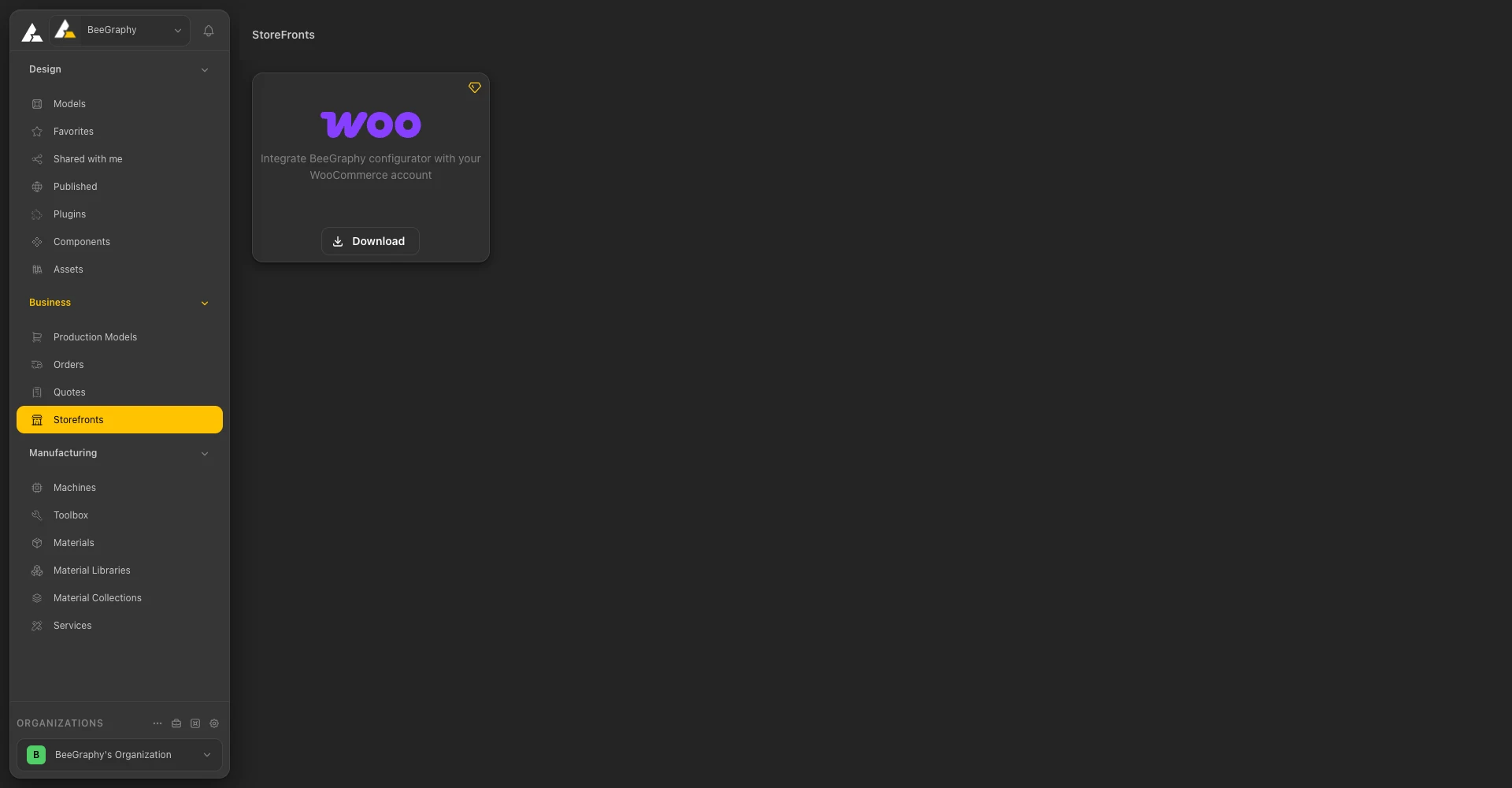
The Storefronts page
Learn More
See Manufacturing for the machines, materials and services a production model uses, and the Editor Workspace page for the rest of the sidebar. The Help Center guide covers the business pages step by step.